
Two Tools Built for Different Jobs
Adobe Lightroom and imagic get compared a lot, but they are not built to do the same job. Lightroom is a full photo management and editing catalog: import, organize, develop, export, all in one subscription. imagic is a desktop app focused on the part of the workflow that eats the most time on a large shoot: culling thousands of photos down to the ones worth editing, then batch-processing them. Understanding that difference is the first step to knowing which one (or which combination) actually fits how you work.
This comparison looks at price, culling speed, RAW format support, editing depth, and the features each tool leaves out, so you can make the call based on your own shoot volume and budget rather than marketing copy. It also builds on the broader look at free Lightroom alternatives, since imagic is one of the few paid options that shows up in that conversation for a specific reason: AI culling, not general editing, is what it adds.
Pricing: Subscription vs One-Time License
Price is usually the first thing photographers ask about, and it is where the two tools differ most. It is also the subject of a longer look at the hidden cost of an Adobe subscription, which is worth reading if the monthly fee is the main thing pushing you to compare alternatives.
| Tool | Pricing model | Cost |
|---|---|---|
| Lightroom (Adobe) | Monthly subscription | Adobe lists the Photography plan (Lightroom + Photoshop) at around $9.99 a month billed annually; check adobe.com for the current figure before quoting it, since Adobe adjusts pricing periodically |
| imagic | One-time license, no subscription | Lite EUR 19, Plus EUR 49, Max EUR 99, each a single purchase with a free 500-export trial and no card required to start |
| imagic Max | One-time license | Adds an MCP server and CLI, so AI agents and scripts can drive the app directly |
Run the Adobe subscription for five years and the total is well over $500. imagic's Plus tier, which covers AI culling and batch editing for most working photographers, is a single EUR 49 payment. There is no ongoing fee, no price increase to track, and no risk of losing access to your editing tools if a subscription lapses. For a business, the subscription is tax-deductible either way, so the calculation is less about total cost and more about whether recurring payments make sense for how you work.
Culling: Manual Review vs AI Quality Scoring
This is the biggest functional difference between the two, and it is the reason many photographers add imagic to a Lightroom workflow rather than replace one with the other.
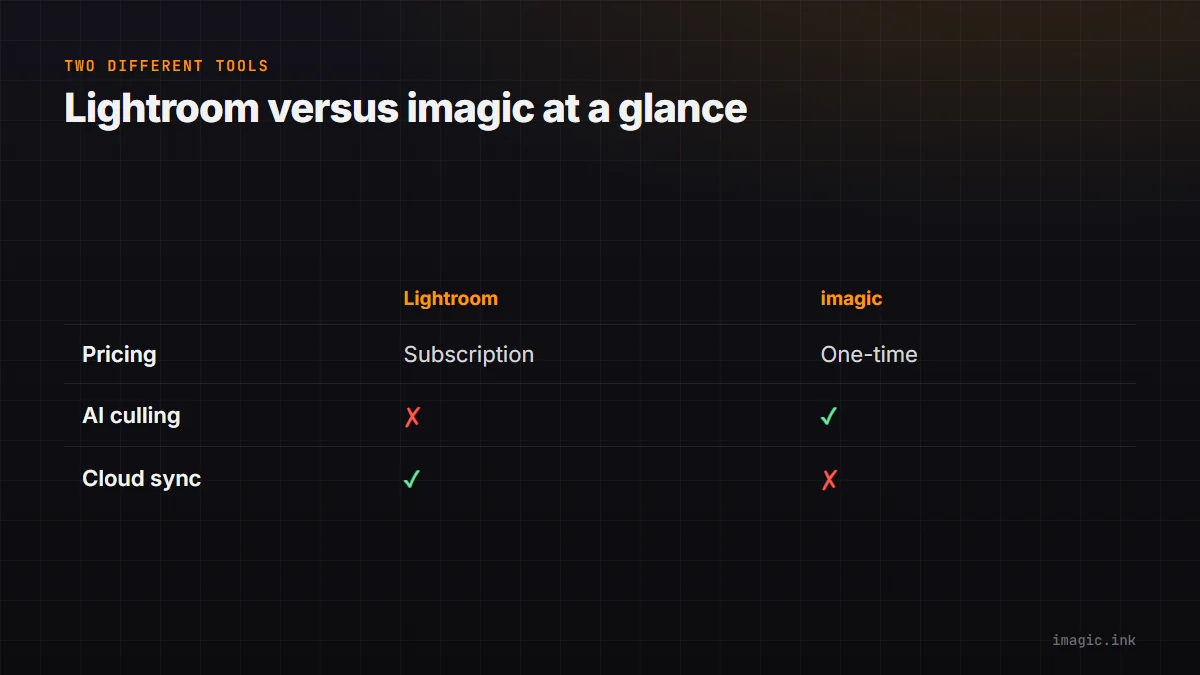
Lightroom Classic added Assisted Culling (eye-focus and open-eyes scores) and automatic duplicate detection in June 2026, but it still has no overall quality score for every frame. Culling a shoot means opening the Library module, viewing each photo at full size, and manually assigning a star rating, flag, or color label before deciding what survives. On a 1,000 to 2,000 frame wedding or event, that manual pass through every image is the single most time-consuming stage of the entire workflow.
imagic analyzes every photo automatically during its Analyse step, scoring sharpness, detecting closed eyes, and evaluating composition. It also groups duplicates and burst sequences so near-identical frames are presented together instead of scattered across the library, with the strongest frame in each group pre-selected. The photographer still makes the final call in the Review step, but the AI does the first pass, which is normally the slowest part of culling by hand.
All of this happens locally: imagic is a desktop app and photos never leave the machine, which matters for photographers who shoot client work under contracts that restrict where images can be uploaded.
A Time Comparison on a Realistic Shoot
Numbers make the difference easier to picture. Take a wedding day that produces around 1,800 RAW frames across two cameras and two shooters, a common volume for a full-day booking.
In Lightroom, culling that volume manually usually means an initial pass to flag rejects (blinks, missed focus, motion blur), a second pass to compare near-duplicate frames from bursts, and a third pass to apply star ratings to the survivors before editing begins. Photographers who have not timed this themselves often underestimate it; industry workflow guides commonly put manual culling for a shoot this size at two to four hours of screen time, done in a single sitting or split across an evening.
In imagic, the same 1,800 frames go through the Analyse step first, where every photo is scored for sharpness and exposure and grouped with its burst siblings. The photographer's job shifts from "look at every frame and decide" to "confirm or override the AI's grouping and top pick," which is a faster decision to make per photo. The Review step for a set this size typically runs well under an hour, though exact timing depends on how much manual override the photographer wants to do on borderline groups.
The gap is not about either tool doing "better" culling in an absolute sense; it is that imagic automates the first, most repetitive filtering pass, which is the part of manual culling that consumes the most time without requiring much creative judgment.
RAW Format Support Compared
Both tools support the RAW formats that matter for working photographers, though the underlying processing engines differ.
| Format | Lightroom | imagic |
|---|---|---|
| Canon CR2 / CR3 | Yes | Yes |
| Nikon NEF | Yes | Yes |
| Sony ARW | Yes | Yes |
| Fujifilm RAF | Yes | Yes |
| Olympus ORF / Panasonic RW2 | Yes | Yes |
| DNG / Pentax PEF | Yes | Yes |
imagic supports nine RAW formats in total (CR2, CR3, NEF, ARW, RAF, ORF, RW2, DNG, and PEF) and processes them through its own built-in RAW engine, then exports to JPEG or TIFF. Lightroom relies on Adobe Camera Raw, which occasionally lags a few weeks behind brand-new camera bodies until Adobe ships a compatibility update. Both tools cover the formats that matter for the overwhelming majority of working photographers.
Editing Depth and Batch Processing
Lightroom's develop module is deep: local adjustment brushes, graduated and radial filters, extensive color grading controls, and a mature preset ecosystem built up over more than a decade. For photographers who do heavy per-image retouching or fine-grained local adjustments, Lightroom's editing toolset is more capable.
imagic's editing is built around speed at volume rather than per-image depth. Batch editing applies adjustments across an entire selected set at once, and one-click styles handle color and tone in a single pass. For photographers who need to turn around 500 to 1,500 final images in a day or two, applying a consistent look across the whole batch and only spot-checking a handful of frames is usually faster than opening each photo individually, even in a tool with more granular controls.
Neither approach is objectively better. A wedding photographer delivering a large gallery on a tight turnaround benefits from imagic's batch speed. A fine art photographer producing a dozen heavily retouched prints benefits from Lightroom's depth.
What Lightroom Does That imagic Doesn't
To be direct about it: imagic is not trying to be a full replacement for Lightroom, and there are things Lightroom does that imagic simply does not offer.
- Cloud sync and mobile apps. Lightroom syncs a catalog across desktop, phone, and web through Adobe's cloud. imagic is desktop-only, Windows and macOS, with all processing local to the machine.
- Tethered capture. Lightroom can shoot tethered to a laptop during a studio session. imagic does not offer tethering.
- Full digital asset management. Lightroom's catalog handles keywording, collections, smart collections, and long-term library cataloging at scale. imagic is not a full DAM system.
- Layers, plugins, and generative tools. Lightroom integrates with Photoshop and third-party plugins for retouching, generative fill, HDR merges, and panorama stitching. imagic does not include layers, plugins, or HDR/panorama merge, and its retouching is limited to the Heal / Remove brush (heal, clone and content-aware remove), red-eye correction and portrait polish, all in Plus and Max.
If any of those are central to your workflow, Lightroom (or Lightroom paired with Photoshop) remains the more complete tool.
Where imagic Fits Best
imagic is built for the specific pain point of culling and processing high volumes of photos fast, without cloud sync or the layers of a full DAM getting in the way. It suits photographers who:
- Shoot high-volume events (weddings, sports, corporate) and need to cut thousands of frames down to a shortlist quickly
- Want a one-time cost instead of a recurring subscription for their editing pipeline
- Prefer local-only processing where photos never touch a cloud server
- Want to automate parts of their pipeline: the Max tier's MCP server and CLI let scripts or AI agents drive exports and batch tasks directly
A free single-photo web editor at imagic's /editor page is also available for quick one-off edits without installing the desktop app.
Building a Workflow That Uses Both
Many photographers do not choose one tool exclusively. A practical combined workflow looks like this: import the full card into imagic, let the AI Analyse step score and group every frame, review and cull down to the keepers, then either export finished JPEGs directly from imagic using batch editing and a one-click style, or export the culled selects into Lightroom for deeper per-image retouching before final delivery. The general principles behind this kind of staged pipeline are covered in more depth in 10 tips for a faster photo workflow, most of which apply regardless of which specific editor sits at the end of the chain.
This splits the work by strength: imagic handles the slow, repetitive part of narrowing thousands of frames down to hundreds, and Lightroom (if you keep the subscription) handles the deep editing on the smaller set that actually needs it. It also means you are not paying Lightroom's monthly fee to do work that a one-time culling tool handles faster. For a broader survey of how other culling tools stack up against each other, not just against Lightroom, see the comparison of photo culling software.
Switching from Lightroom to imagic: What to Expect
Switching does not have to mean an abrupt cutover. Since imagic's trial requires no card and runs for seven days, a practical way to evaluate the switch is to run one or two upcoming shoots through both pipelines in parallel: cull as normal in Lightroom, then separately run the same RAW files through imagic's Analyse and Review steps and compare how closely the AI's top picks match your own final selects. Most photographers find the two agree on the great majority of frames, with the AI mainly catching technical rejects (blinks, motion blur, obvious duplicates) faster than a manual first pass would.
Existing Lightroom catalogs, collections, and keywording do not transfer into imagic, since it is not a cataloging tool. Photographers who rely heavily on long-term keyword search across a library built up over years should expect to keep Lightroom (or another DAM) for that role and use imagic specifically for the culling and export stage on new shoots.
Which Should You Choose?
If your bottleneck is culling volume and you want to cut a subscription out of your monthly costs, imagic's one-time license is worth trying during the free 500-export trial. If your work depends on tethered capture, deep local retouching, generative tools, or cloud sync across devices, Lightroom remains the more complete platform. For many working photographers, the honest answer is not "instead of" but "alongside": cull fast in imagic, finish select images in whichever editor gives you the control a particular shot needs. The full software comparisons archive covers how imagic stacks up against other editors beyond Lightroom, including darktable and Capture One.
Frequently asked questions
Can imagic fully replace Lightroom?
For culling and batch processing, often yes. For cataloging a large library long-term, tethered shooting, or plugin-based retouching, no. Many photographers use imagic for the culling and batch export stage and keep Lightroom or another editor for deeper per-image work.
Does imagic have anything like Lightroom's cloud sync?
No. imagic is a local-only desktop app for Windows and macOS, and photos never leave the machine during processing. There is no cloud sync or mobile companion app.
Is imagic's one-time price actually cheaper than Lightroom long term?
For most photographers, yes, since a one-time purchase does not accrue further cost after the purchase while a subscription keeps billing indefinitely. The exact break-even point depends on Adobe's current pricing, so check adobe.com for the live figure before comparing totals.