What Professional Photographers Actually Need From Editing Software
Professional workflows are not judged by how many sliders an interface offers. They are judged by throughput: how many images move from memory card to client-ready file without becoming a bottleneck. A wedding, event, or sports photographer working through several thousand frames per shoot needs software that handles volume without demanding proportionally more hours at the desk. A studio or commercial photographer working on fewer, more considered frames usually cares more about precise color control and reliable tethering. The right app for a professional depends heavily on which stage of the pipeline is actually slowing them down: selection, color grading, retouching, or export.
This comparison looks at five tools professionals commonly rely on: imagic, Capture One, Adobe Lightroom, the free RAW processors darktable and RawTherapee, and Affinity Photo. Each occupies a different part of the pipeline, and most working photographers end up combining two or three of them rather than standardizing on a single app for everything.
imagic: AI Culling Built for High-Volume Work
imagic is a desktop application for Windows and macOS that focuses specifically on the part of the pipeline photographers complain about most: getting from a raw card dump to a manageable set of selects. It scores every imported photo for sharpness, closed eyes, and composition, and it groups near-identical burst frames automatically, so a photographer compares small clusters of similar shots instead of scrolling through hundreds of individual thumbnails one at a time. All processing happens locally on the machine; photos are not uploaded anywhere as part of culling.
For a professional whose bottleneck is the first pass through 2,000 to 4,000 frames from a wedding or event, that changes the shape of a workday. Rather than manually flagging every image, the photographer reviews a pre-sorted set and spends their attention on judgement calls instead of mechanical comparison. imagic also includes batch editing and one-click styles, plus RAW processing through its own built-in RAW engine, so a photographer can move from import to exported JPEG or TIFF selects without leaving the app. It supports nine RAW formats: CR2, CR3, NEF, ARW, RAF, ORF, RW2, DNG, and PEF.
What it does not do is worth stating plainly. There is no cloud sync, no mobile app, no tethered capture, no printing module, and no layer-based retouching or generative fill. It is not trying to replace a dedicated RAW editor or a pixel-editing tool; it is built to remove the selection bottleneck, then hand off selects to whatever editor a photographer already uses. Licensing is a one-time purchase rather than a subscription, with a free 500-export trial that requires no card.
Capture One: Color Science and Tethered Capture
Capture One remains a reference point for photographers who shoot tethered in a studio, particularly for fashion, product, and commercial work. Its color handling, especially skin-tone rendering, is widely regarded as among the most refined in mainstream RAW processors, and its tethering support for major camera brands is deep and reliable. Layer-based local adjustments and a strong masking toolkit make it a capable full editing environment on its own, not just a RAW converter.
Culling in Capture One is manual: star ratings, color tags, and flags applied by the photographer, the same basic approach Lightroom uses. There is no automated quality scoring built into the app. For a studio photographer working through a controlled shoot of a few hundred frames, that limitation rarely matters much. For a photographer coming back from an unscripted event with several thousand frames, it is the same time sink that AI culling tools exist to solve.
Adobe Lightroom: The Established All-in-One Option
Lightroom's advantage is breadth. It combines catalog management, RAW editing, and export in a single application, with mobile and desktop syncing across a photographer's devices. Its adjustment tools, AI-assisted masking for subjects and skies, and tight integration with Photoshop make it the default choice for photographers already embedded in Adobe's ecosystem.
Lightroom today is subscription-only; Adobe discontinued a standalone perpetual license for Lightroom some years ago, so ongoing access requires an active Creative Cloud plan. Its culling is still mostly manual star and flag rating: Lightroom Classic added Assisted Culling (eye-focus and open-eyes scores) and automatic duplicate detection in June 2026, but it still has no overall quality score for every frame. For photographers who value a single integrated tool spanning editing, mobile review, and cloud backup, and who are comfortable paying on a recurring basis, it remains a reasonable choice, particularly for those who also need Photoshop.
darktable and RawTherapee: Free Processing Engines Worth Knowing
Both darktable and RawTherapee are free, open-source RAW processors available on Windows, macOS, and Linux, and both produce output quality that competes seriously with commercial software. darktable pairs a non-destructive editing pipeline with basic digital-asset-management features, keywording, star ratings, and library organization, which puts it closer to a full Lightroom substitute than most free tools manage. RawTherapee is narrower in scope, focused almost entirely on demosaicing and tonal processing quality, with a less developed cataloging layer.
Neither tool includes AI-based culling or duplicate detection on its own. Photographers who use them typically pair one with a separate culling step, whether manual rating or a dedicated tool like imagic, and then bring only their selects into darktable or RawTherapee for final processing. imagic's own built-in RAW engine means a photographer can move from culling directly into RAW processing without a separate handoff step for standard adjustments, and still send files to a standalone RawTherapee install for deeper manual control when needed.
Affinity Photo: Layer-Based Retouching Without a Subscription
None of the tools above are built for heavy pixel-level retouching: compositing, frequency separation, dodge and burn on separate layers, or advanced healing work across large areas of an image. Affinity Photo fills that gap. It is a one-time purchase raster editor comparable in scope to Photoshop for most photography retouching needs, without a recurring fee attached. Photographers doing portrait or commercial retouching typically keep it as a second application alongside whichever RAW processor and culling tool handle the rest of the pipeline.
How RAW Format Support Affects the Decision
Format support is easy to overlook until a new camera body forces the issue. Most mainstream tools, imagic, Capture One, Lightroom, and darktable among them, support the common RAW formats from Canon, Nikon, Sony, Fujifilm, and other major manufacturers: files such as CR2, CR3, NEF, ARW, RAF, ORF, RW2, DNG, and PEF. Where tools differ is in how quickly they add support for brand-new camera models and how consistently that support is delivered as part of a license a photographer already owns, rather than requiring a fresh purchase or subscription renewal.
Photographers who shoot with several camera bodies from different manufacturers, common among second-shooters and studios with rental gear, benefit from standardizing on a tool with broad RAW coverage across their entire kit rather than juggling format-specific software per camera.
Comparing the Field
The table below summarizes where each tool sits in a professional pipeline, focused on the dimensions that actually change day-to-day workflow: licensing model, AI-assisted culling, and platform support.
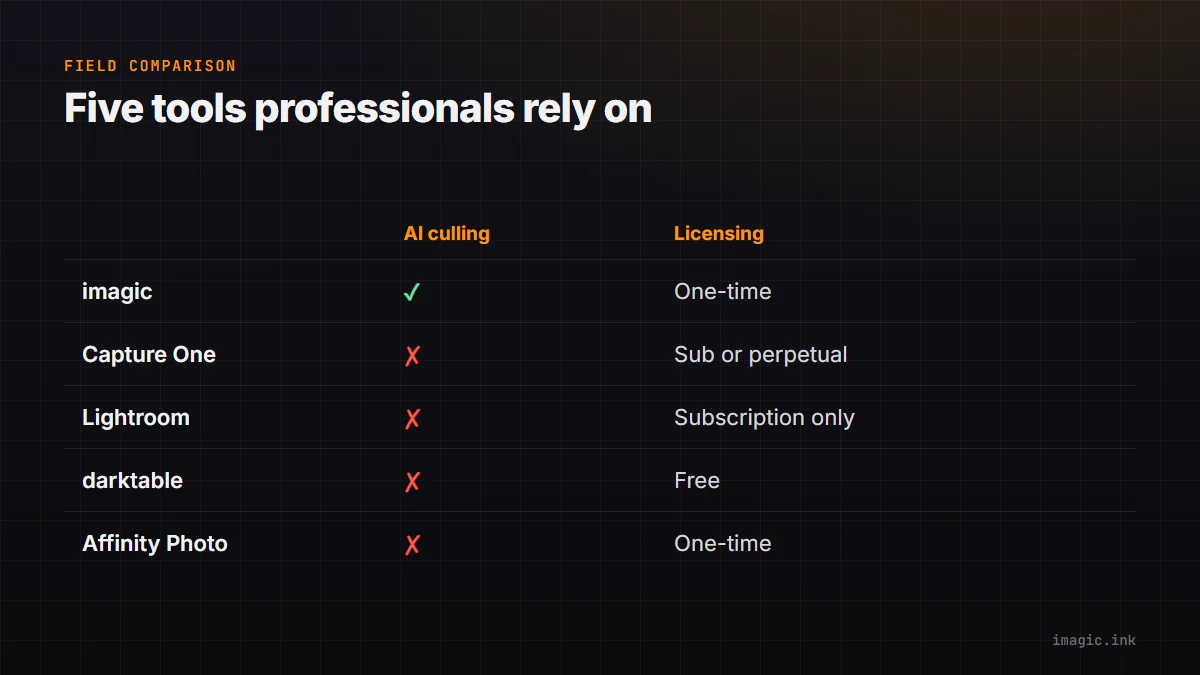
| Tool | Primary role | AI culling | Licensing | Platforms |
|---|---|---|---|---|
| imagic | AI culling, batch edit, RAW export | Yes (quality scoring, burst grouping) | One-time purchase | Windows, macOS |
| Capture One | Tethered capture, color grading | No (manual rating) | Subscription or perpetual license | Windows, macOS |
| Adobe Lightroom | Catalog, editing, mobile sync | Partial (Classic: eye and duplicate checks since June 2026) | Subscription only | Windows, macOS, iOS, Android |
| darktable | RAW processing, basic DAM | No | Free, open source | Windows, macOS, Linux |
| Affinity Photo | Layer-based retouching | No | One-time purchase | Windows, macOS, iPad |
Building a Professional Stack Instead of Picking One App
Most working photographers do not standardize on a single tool across the entire pipeline. They combine two or three, each handling the part it is strongest at. A common pattern for high-volume shooters: cull first in a dedicated AI tool like imagic to cut a multi-thousand-frame shoot down to a manageable set of selects, apply base RAW adjustments and export in a processor such as Capture One, darktable, or imagic's own built-in RAW engine, then move any images needing heavy retouching into Affinity Photo or Photoshop as a separate, smaller step.
This layered approach matters more as shoot volume rises. A studio photographer editing forty considered frames from a product shoot gets little from an automated culling pass; there simply are not enough duplicate or borderline frames to make it worthwhile. A wedding or sports photographer working through 3,000 frames from a single day gets far more value from that same step, because manual review time scales roughly linearly with shoot size while automated scoring does not.
See the full software comparisons category for more head-to-head breakdowns, including a closer look at Lightroom vs imagic and how the wider photo culling software field compares on speed and format support. For a closer look specifically at Capture One's tethering and color tools, see the Capture One comparison page.
Matching the Tool to the Genre
Genre shapes the decision as much as budget does. Wedding and event photographers, who deal with the highest frame counts and the most burst shooting, tend to benefit most from AI culling as the first step in their pipeline, since that is where manual review time otherwise dominates the schedule. Studio, product, and fashion photographers, who shoot fewer but more deliberate frames and need tethered capture plus precise color control, lean toward Capture One. Photographers doing heavy composite or beauty retouching work need a layer-based editor like Affinity Photo or Photoshop regardless of which culling or RAW tool they use upstream, since neither imagic nor Capture One is built for that kind of pixel-level manipulation.
Freelancers balancing several genres in a single month often end up with the broadest stack: a culling tool for high-volume days, a RAW processor for baseline adjustments, and a retouching app kept on standby for the jobs that need it. The upfront cost of assembling that stack with one-time purchases and free tools is usually lower than a full year of an all-in-one subscription, and it avoids paying monthly for retouching capability that only a fraction of a photographer's jobs actually require.
Frequently asked questions
Do professionals really need more than one editing app?
Most do, in practice. A culling or first-pass tool and a RAW processor cover most jobs, and some photographers add a third dedicated retouching app for portrait or commercial work. Very few single applications cover culling, RAW processing, and layer-based retouching equally well.
Is AI culling accurate enough to trust for client work?
AI quality scoring is reliable for identifying technical issues like blur, closed eyes, and duplicate frames, which is exactly the mechanical first pass photographers find tedious. Creative judgement, such as picking the best expression from a group of technically similar frames, still sits with the photographer during review.
What is the practical difference between subscription and one-time licensed tools?
Subscription tools bill on a recurring basis for as long as a photographer keeps using them, while one-time purchases are paid once and used indefinitely, though a vendor may charge separately for a major future version. Over a multi-year career the two models can diverge significantly in total cost, so licensing model is worth weighing alongside feature set.