
Breaking Free from the Lightroom Catalog
Adobe Lightroom's proprietary catalog format is one of the most effective pieces of lock-in in software history. Years of edits, star ratings, collections, and keywords are stored in a format that only Lightroom can fully read. Migrating away feels daunting. But it's more achievable than Adobe wants you to think — and the migration pays for itself in eliminated subscription costs within months.
Understanding What You're Migrating
A Lightroom catalog contains several types of data:
- RAW file locations: Where your original files are stored on disk
- Develop settings: Your editing adjustments (exposure, color, etc.) stored as non-destructive instructions
- Metadata: Star ratings, color labels, flags, keywords, GPS data
- Collections and smart collections: Custom organizational groupings
- History: Your editing history for each photo
Some of this data migrates well; some requires decisions about what to prioritize.
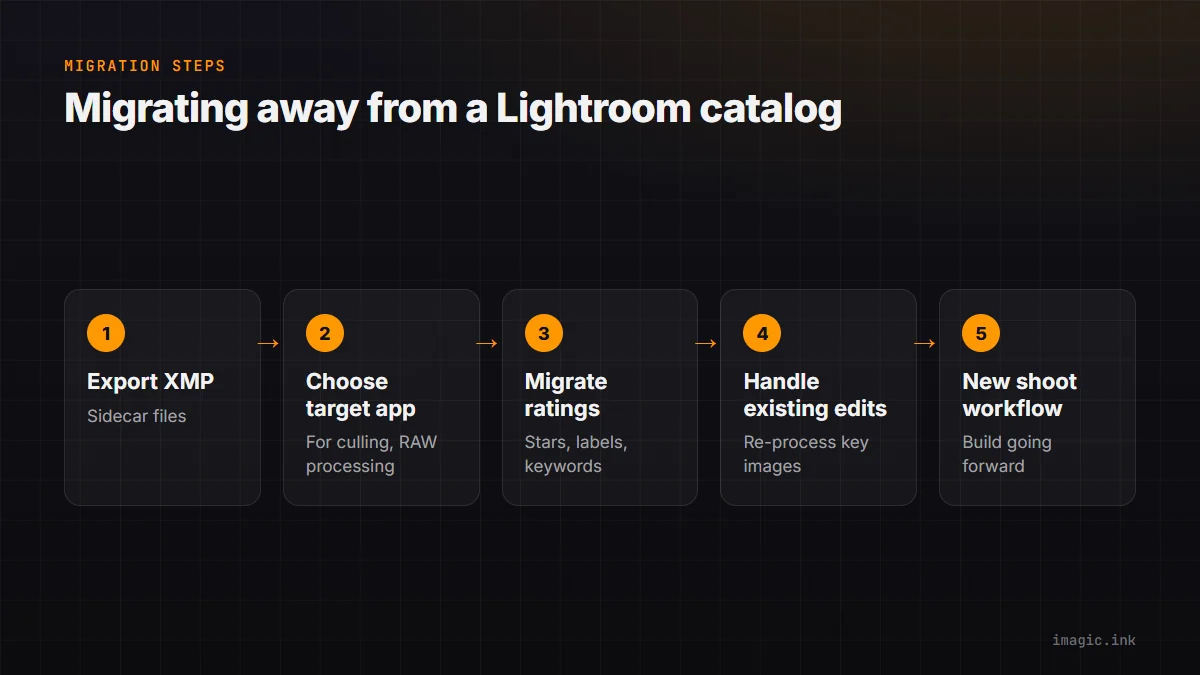
Step 1: Export XMP Sidecar Files
Lightroom can write metadata and develop settings to XMP sidecar files that sit alongside your RAW files. In Lightroom: go to Catalog Settings > Metadata > Automatically write changes into XMP. Then select all photos and do Metadata > Save Metadata to Files. This creates .xmp sidecar files for every RAW file in your catalog.
XMP is an open standard that other applications can read, including darktable and (partially) RawTherapee. This is the most important migration step.
Step 2: Choosing Your Target Application
For culling and organization going forward, imagic provides AI-assisted culling that replaces Lightroom's manual star-rating workflow with a faster, AI-scored system. Import your existing RAW files into imagic — it reads the XMP metadata including any ratings you've already applied.
For RAW processing (replacing Lightroom's Develop module), your options are:
- RawTherapee: Best for batch processing and profile-based workflows. Does not read Lightroom XMP develop settings.
- darktable: Better XMP import compatibility. Can import Lightroom XMP develop settings with limitations.
Step 3: Migrating Ratings and Metadata
Star ratings, color labels, and keywords in XMP files are readable by both darktable and imagic. Import your RAW file folders into imagic and it will recognize existing XMP ratings, letting you continue from where you left off in Lightroom without re-rating everything from scratch.
Step 4: Handling Existing Edits
This is the hardest part. Lightroom develop settings don't translate perfectly to other RAW processors because each processor interprets the RAW data differently. Options:
- Export finished JPEGs from Lightroom for all photos you're happy with, so you have finished versions regardless of future software choices
- Re-process key images in RawTherapee from the RAW file, using your Lightroom edit as a visual reference
- Use darktable's Lightroom import module which can translate some (not all) Lightroom develop settings into darktable equivalents
Step 5: New Shoot Workflow
For all new shoots going forward, build your workflow on imagic + RawTherapee from the start. The migration overhead is a one-time cost; every new shoot benefits immediately from the subscription-free workflow. Download imagic from imagic.ink/desktop, set up RawTherapee, and start building your new catalog-free workflow.
What You Gain
$9.99/month gone from your subscriptions. Your files in open formats (XMP, DNG, standard RAW) that any software can read. Processing settings in PP3 files you own and control. A culling app (imagic) that runs on Windows and macOS, paired with RawTherapee and darktable — open-source tools the community keeps maintaining regardless of any single vendor.
Frequently asked questions
Will I lose my star ratings and keywords when I leave Lightroom?
Not if you export XMP sidecar files first. Star ratings, color labels, and keywords written to XMP are readable by both imagic and darktable, so you can continue from where you left off instead of re-rating a whole catalog.
Can my existing Lightroom edits transfer to RawTherapee or darktable?
Not perfectly. Lightroom's develop settings do not translate directly since each RAW processor interprets the data differently. Exporting finished JPEGs for photos you are happy with, or re-processing key images using the old edit as a visual reference, are the practical workarounds.
Is it worth migrating away from Lightroom if I only shoot occasionally?
The subscription cost adds up regardless of shooting frequency, so even occasional shooters often recover the migration effort within a year. More step-by-step migration and setup guides cover related transitions in detail.