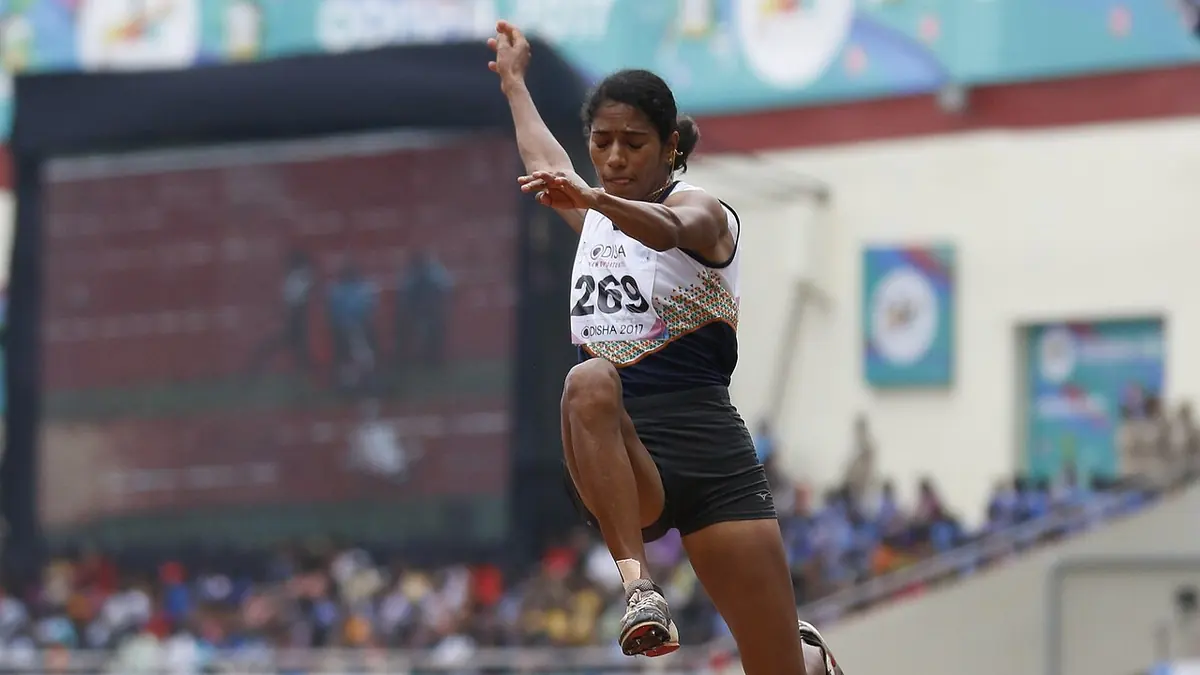
Sports bursts break most culling tools in the same way. The software is built for people photos, so it rewards a visible face with both eyes open, and an athlete in the middle of a move is usually turned away, blurred at the edges of the frame, or mid-blink. The podium and the warm-up shots score best, and the actual competition lands in the reject pile. imagic has a setting for exactly this, and since version 1.3.12 it also reads the athlete's body position to split a burst into its phases and pick the peak of each one. This guide walks through the setup and the cull, step by step.
Step 1: Switch the Subject to Action
Open File > Settings (Ctrl+, on Windows) and go to the AI Culling tab. Find the Subject setting. It has two options:
- People: faces count toward the score (the default). A detected face is about 15% of a photo's score, and a face with both eyes visible scores best.
- Action and sports: ignore faces. Face detection is skipped entirely, and the score leans on sharpness and whether the subject you focused on is actually sharp.
Pick Action and sports and save. The setting applies to the next analysis, so if you already analysed the shoot, use Re-Analyse All on the Analyse step to re-score it under the new profile. It is a normal setting, not a paid extra: it works the same on every licence tier and on the free trial.
Step 2: Import the shoot and run the analysis
Import works as usual: point imagic at the folder from the card, tick Scan subdirectories if the shoot is split across folders, and RAW files from every major body are read directly. Then press Run AI Analysis.
The first time you analyse with Action selected, imagic downloads its pose model once (about 19 MB), the same way it fetches its other models. After that everything runs on your own machine; the photos are never uploaded. For RAW files the pose reading uses the small preview JPEG embedded in each file rather than a full decode, so it adds little to the analysis time. If the pose model cannot run on a machine (an Intel Mac, for example), the Action profile still ignores faces and burst grouping falls back to comparing whole frames, as it did before 1.3.12.
Step 3: How imagic splits a burst into moments
Grouping happens in two passes. First, frames that look alike and were taken less than 90 seconds apart are treated as one moment. In a gym or on a pitch that is not enough on its own: the background dominates every frame, so an approach, the take-off and the landing can look like the same picture to a whole-frame comparison.
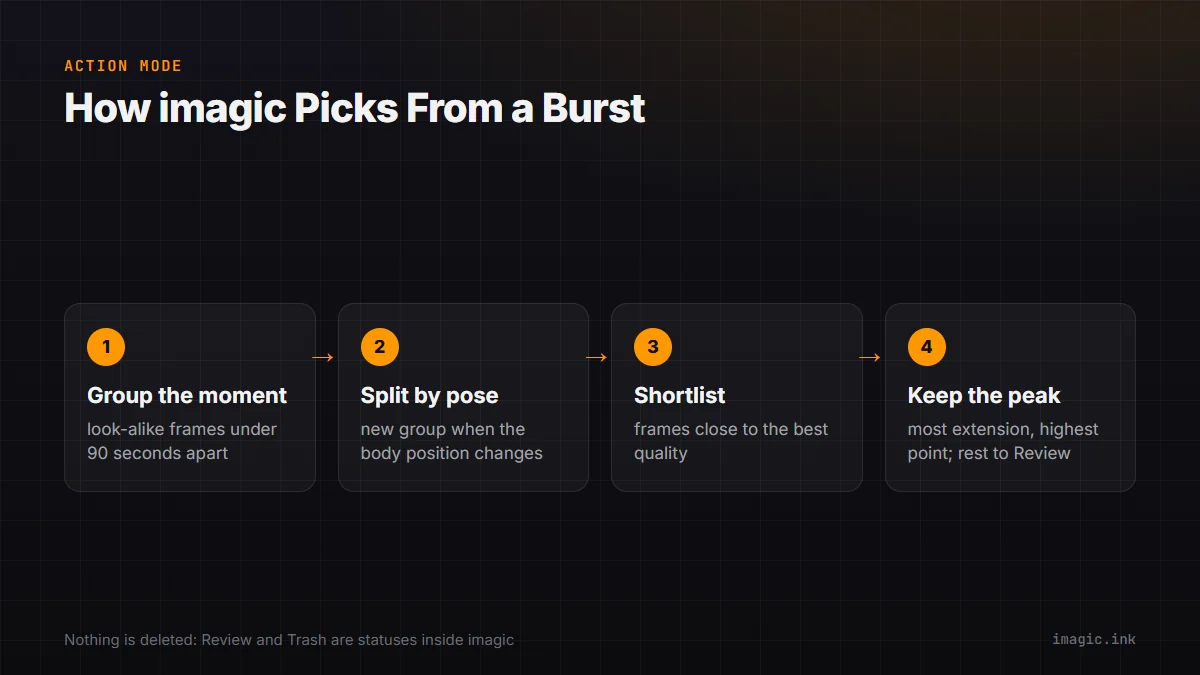
So with Action on, imagic reads the athlete's pose in every frame and starts a new group whenever the body position changes substantially. A vault becomes approach, contact, flight and landing. A bars routine becomes its phases. A single frame where the pose is misread never splits a group, and a group only splits on a lost athlete when that lasts at least two frames, so one bad detection does not scatter a burst.
One limit worth knowing: the pose reader follows one person per frame, the athlete it judges to be the subject (large, confidently detected and central beats a small bystander at the edge). For individual sports that is exactly right. For a crowded team play, the grouping follows whoever it picked as the main subject.
Step 4: The peak pick inside each moment
Inside each posture group, imagic first narrows the choice to frames whose technical quality is close to the best frame in that group, so a soft frame never wins just because the pose is dramatic. Among those, it picks the frame nearest the peak of the action: the most extension, the highest point of a jump, the sharpest subject, and a body that is not cut off by the edge of the frame.
That frame is the keeper for the moment. The others in the group go to Review, not Trash, and each carries a short reason naming the frame that caught the peak of this moment, so you can see at a glance why it was passed over and swap the pick if your eye disagrees.
Step 5: Decide how many to keep
On the Analyse step, the card titled How many photos should the AI keep? has two modes:
| Option | What it does |
|---|---|
| Best of every moment | Keeps every frame that clears the quality bar, one per distinct moment. The default. |
| Keep only the best (N photos) | Ranks the shoot and marks exactly N as Keep. Everything over the limit goes to Review, never Trash. |
If you already analysed the shoot and want a different number, change it and press Apply to analysed photos. That re-cuts the shoot from the stored scores instantly: nothing is re-scored, and any keep or trash decision you made yourself is left alone. It is the quickest way to go from a generous first pass to a tight gallery for an editor or a team page. The same limit has a starting value in Settings, under Keep at most, for shoots where you always want a fixed count.
Step 6: Review with the keyboard
Open Detailed Culling View on the Review & Cull step to see every photo with its score, the keep or trash call and the reason behind it. Double-click a row for the full-size view, then work from the keyboard:
- K keeps the photo
- L trashes it
- J or H sends it back to Review
- Left and Right arrows (or A and D) move between photos, and Esc closes the view
Trash in imagic is a status, not a delete. Your files stay on disk exactly where they are, and the Trashed filter in Review brings any of them back. The same is true of Find Duplicates: it marks the unpicked copies as Trash inside imagic and moves or deletes nothing.
It learns sports separately from portraits
Every time you overrule a keep or trash call, imagic learns from it. Since 1.3.11 that learning is kept per subject profile, so the corrections you make on a sports shoot tune the Action profile and leave your People culling alone, and the other way round. Switching the Subject back to People for a portrait session picks up where your portrait culling left off. On Action, learning never brings face scoring back: faces stay switched off until you choose People again.
For the wider workflow around a sports cull (buffer settings, burst rates and deadline delivery), see the burst culling guide for sports photography and the Sony A1 track workflow, and the sports photography overview for how imagic fits the genre. More walkthroughs live in the imagic help centre. You can try all of this on your own shoot with the free trial: 500 exports, no card, and culling and editing never count against it.
Frequently asked questions
Do I need imagic Max for the Action profile?
No. The Subject setting, pose grouping and the peak pick work on every licence tier and on the free trial. The pose model downloads once and runs on your own machine.
Will switching to Action change photos I already culled?
Not by itself. The setting applies to the next analysis, so a shoot you already analysed keeps its scores until you press Re-Analyse All. Keep and trash decisions you made by hand are yours, and re-cutting with Apply to analysed photos never changes them.
Does imagic delete the frames it does not keep?
No. Frames that lose the peak pick go to Review, and Trash is only a status inside imagic. Nothing is moved or deleted on disk, and the Trashed filter in Review puts any photo back.