
Cancelling a long-running Adobe subscription is more involved than clicking cancel, mostly because Lightroom's edits and organization live inside the catalog, not inside your image files. Skip the export step and you can lose access to years of adjustments the moment the subscription ends. Here is a practical cancel adobe subscription checklist that gets everything out safely before you pull the trigger.
Export Your Originals and Your Edits, Not Just One or the Other
Exporting only finished JPEGs loses your ability to re-edit anything later; exporting only RAW originals loses every adjustment you have made. Do both: export full-resolution edited copies (JPEG or TIFF) of anything you might need again, and separately make sure your RAW originals are backed up outside Creative Cloud storage. If you plan to keep editing after cancelling, also read the section below on catalog data specifically, since edits themselves need special handling.
Catalog Backup: What XMP Sidecars Rescue
Lightroom can write your edit history to XMP sidecar files or embed it in DNG files, which is the closest thing to a portable version of your adjustments. Before cancelling, go through your catalog and write metadata to files (Lightroom's catalog settings control this) so edit history travels with the RAW files themselves rather than staying locked inside the Lightroom catalog database. This will not perfectly transfer every adjustment to a different editor, since masking and some tool-specific edits do not translate across software, but it is far better than nothing.
Early-Termination Fee Timing
Annual Creative Cloud plans paid monthly often carry an early-termination fee if you cancel before the contract term ends; check your specific plan's terms before cancelling mid-cycle. Timing cancellation to align with your renewal date, rather than mid-contract, is usually the cheaper path if the fee is significant. Adobe's account settings show your specific plan type and renewal date, worth confirming directly rather than assuming based on what you signed up for originally.
What Stops Working the Moment You Cancel
Cloud sync across devices stops, mobile app access tied to your subscription stops, and any workflow depending on Creative Cloud storage for active files needs a new home before that happens, not after. Plan the cutover, not just the cancellation.
Building a Replacement Stack
What replaces Lightroom depends on what you actually used it for. For AI-assisted culling and batch RAW editing without a subscription, imagic (Lite EUR 19, Plus EUR 49, Max EUR 99, one-time) covers that ground with local processing, supporting CR2, CR3, NEF, ARW, RAF, ORF, RW2, DNG, and PEF files. For detailed retouching or compositing, a layered editor separate from a batch tool is still needed. See Stop Paying for a Lightroom Subscription for a fuller look at what a non-subscription stack looks like, and imagic vs Lightroom Classic for a full feature comparison if imagic is part of your replacement plan.
A Practical Cancellation Order
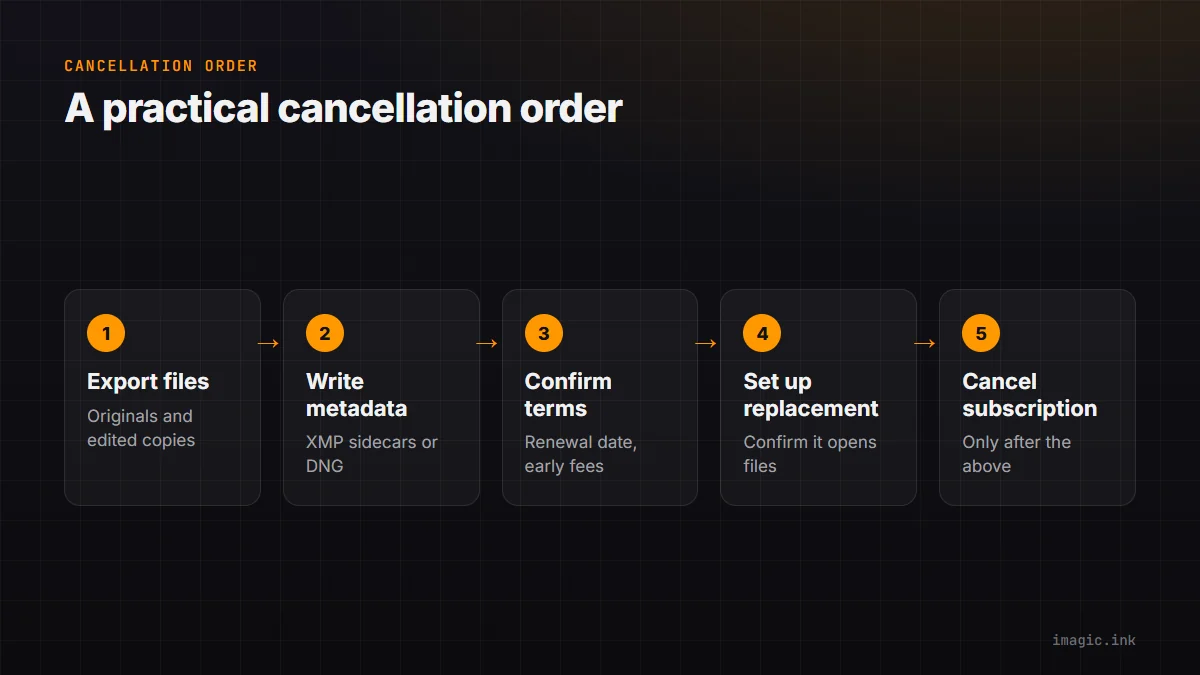
Export originals and edited copies first, write metadata to files for edit-history portability second, confirm your renewal date and any early-termination terms third, set up whatever replacement tool you are moving to and confirm it opens your exported files correctly fourth, and only then cancel the subscription itself. Doing it in that order avoids the common mistake of losing access mid-export because the subscription lapsed before the backup finished.
Frequently asked questions
Will I lose my edits if I cancel Lightroom?
You will lose access to the catalog and its editable history unless you export edited copies and write metadata to sidecar files or DNGs beforehand; do this before cancelling, not after.
Is there always an early-termination fee?
Not always, it depends on your specific plan type (monthly versus annual-paid-monthly) and where you are in the contract term; check your account settings directly.
Can I still open my old Lightroom edits in a different editor?
Partially. XMP sidecar or embedded DNG metadata carries basic adjustments, but masking and some tool-specific edits typically do not transfer to a different editor.
Try imagic free for 500 exports, no card required, as part of building your replacement workflow before you cancel anything. Start the free trial.