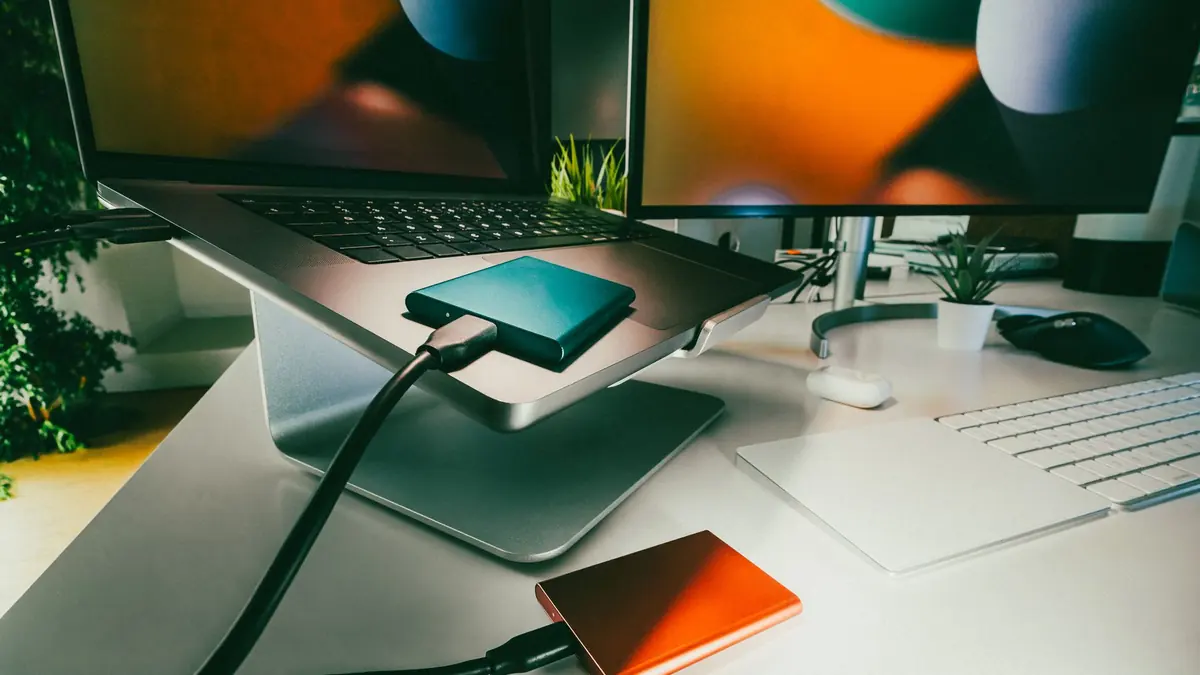
The 3-2-1 backup rule is old advice, but most photographers who have heard of it have never actually implemented it in a specific, concrete way. It sounds abstract until you map it onto real hardware and a real folder structure. Once it is concrete, it stops being a rule you know about and becomes a routine you actually follow.
What 3-2-1 Actually Means
Three total copies of your files, on two different types of media, with one of those copies stored offsite, away from wherever the other two live. The logic behind each number matters: three copies protects against a single drive failure without leaving you at zero; two media types protects against a failure mode that could hit an entire batch of identical drives at once (a bad drive model, a specific firmware bug); one offsite copy protects against a local disaster, theft, fire, flood, that could take out every drive in the same building simultaneously.
A Concrete, Affordable Setup
In practice, this maps onto something like: your working drive (the laptop or desktop drive you actually edit from) as copy one, a second local external drive you back up to regularly as copy two, and a cloud backup service or a drive kept at a different physical location (a family member's house, a safe deposit box, a second office) as copy three, satisfying the offsite requirement. This does not require expensive enterprise hardware; a single reliable external SSD or HDD and one cloud backup subscription covers most working photographers' needs without a large ongoing cost.
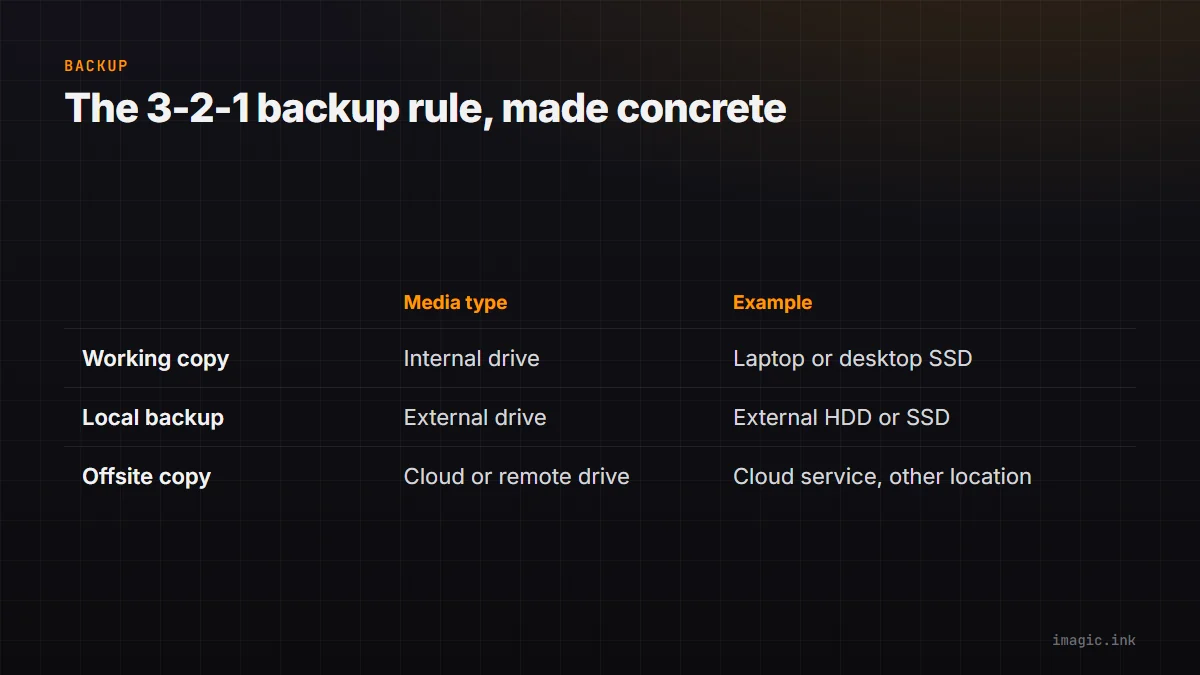
| Copy | Media type | Example |
|---|---|---|
| 1 (working) | Internal drive | Laptop or desktop SSD you edit from directly |
| 2 (local backup) | External drive | External HDD or SSD kept at your workspace |
| 3 (offsite) | Cloud or remote drive | Cloud backup service, or a drive stored at another location |
What to Back Up at Each Stage
Not every file needs the same protection level at every point in your workflow. Original RAW files straight off the card deserve full 3-2-1 protection immediately, since they are irreplaceable. Culled RAW files, the keepers after review, are worth keeping in the full backup rotation through delivery and for as long as your client contract or your own archive policy requires. Final exports (JPEGs or TIFFs delivered to clients) are lower priority for long-term backup in some workflows, since they can be regenerated from the culled RAW files if the exports themselves are ever lost, though many photographers keep them anyway for fast re-delivery without needing to re-render.
Where Photographers Actually Fall Short
The most commonly skipped piece of 3-2-1 is the offsite copy, not because photographers do not understand its value, but because it requires either a recurring subscription cost or the friction of physically moving a drive somewhere else. Two local copies protect against drive failure, the most common failure mode, but not against a local disaster, which is rarer but catastrophic when it happens. If budget forces a choice, prioritizing a genuinely reliable local two-copy setup over an inconsistent offsite habit is reasonable, but treat the offsite gap as a known risk to close as soon as it is affordable, not a permanent compromise. See backing up and organizing a photo library and a RAW file backup strategy for photographers for more detail on organizing the files themselves, and imagic's RAW format support for the formats this backup strategy needs to cover. More practical guides like this live in the guides archive.
Frequently asked questions
Does a NAS count as one of the three copies or two?
A NAS can serve as one local copy, but if it is the only backup beyond your working drive, you still need a genuinely offsite third copy to satisfy the full rule.
Is cloud storage alone enough to satisfy 3-2-1?
No, cloud storage alone is typically one copy on one media type; it works well as the offsite leg of the strategy, but should not replace having a local backup as well.
How often should backups actually run?
Local backups should ideally run after every shoot or at minimum daily during active work; offsite or cloud sync can run on a slightly longer schedule, but should not lag by more than a few days for active client work.