A photo that looked sharp and clean in the editor comes out soft, blocky, or oddly compressed once it is posted to Instagram, and the platform gets blamed for "ruining" the image. Instagram's compression is real and aggressive, but most quality loss on the platform is actually preventable by exporting to match how its compression engine behaves, rather than exporting the way you would for a client gallery or a print.
How Instagram's Compression Actually Behaves
Instagram re-compresses every uploaded image to fit its own bandwidth and storage targets, regardless of the quality of the file you upload, and that compression is more aggressive on images that are unnecessarily large, oddly proportioned, or already compressed inefficiently before upload. Uploading a massive, uncompressed TIFF does not produce a better result than uploading a well-prepared JPEG at the platform's preferred dimensions; if anything, an oversized file gives the platform's own compression more work to do and more opportunity to introduce visible artifacts. Understanding this changes the goal: instead of exporting the "highest quality" file in the abstract, the goal is exporting a file that needs the least additional compression from Instagram's side.
Size Targets That Actually Survive Compression
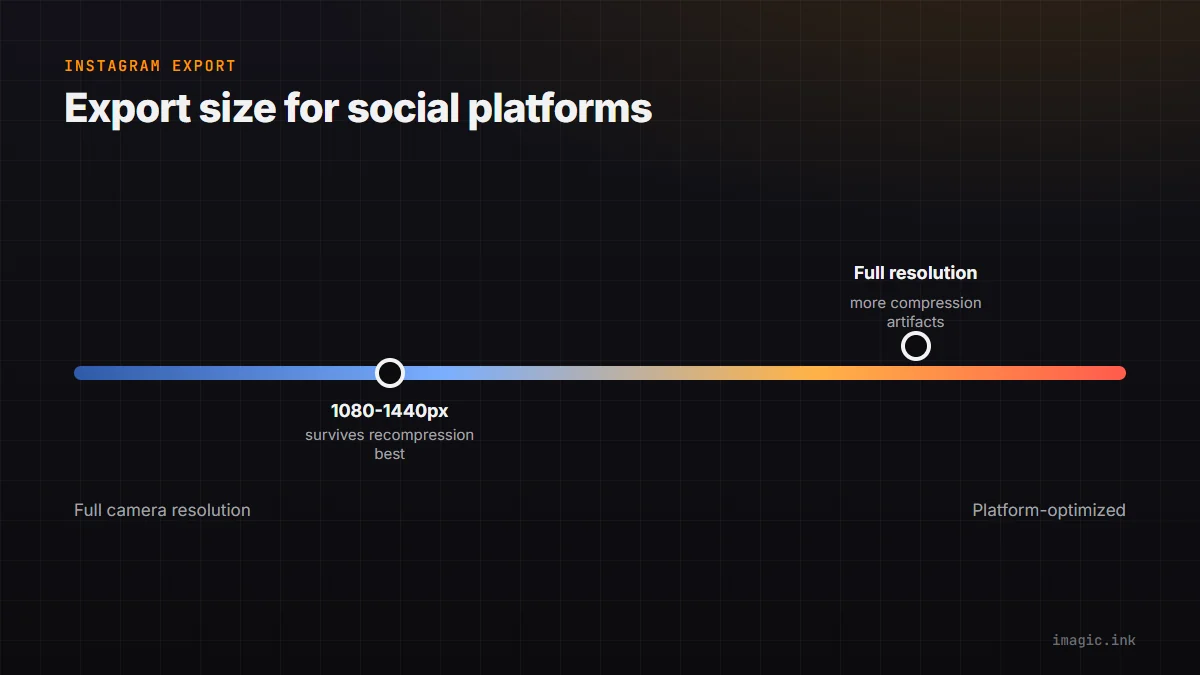
Exporting at or near Instagram's preferred long-edge dimension, generally in the range of 1080 to 1440 pixels on the long edge depending on the current platform behavior and aspect ratio, tends to survive re-compression noticeably better than exporting at full camera resolution and letting the platform downscale it. A moderate-to-high JPEG quality setting, commonly somewhere around 85 to 95 out of 100 rather than maximum, keeps file size reasonable without introducing the compression artifacts of a lower setting; going all the way to 100 often does not meaningfully improve the result once the platform's own compression is applied on top. The exact optimal numbers shift periodically as platforms update their processing pipelines, so treating these as a solid starting range rather than a permanent fixed rule is the safer approach.
sRGB Conversion Is Not Optional
Instagram, like nearly every consumer web platform, expects and displays images in the sRGB color space, and images exported in a wider gamut like Adobe RGB without conversion can display with shifted, sometimes noticeably duller or off colors on the platform, since the extra color information gets misinterpreted rather than properly converted. This is a simple, easy-to-miss export setting: confirm the color space is set to sRGB specifically for any social export, separate from whatever color space you might use for print or client delivery work. TIFF vs JPEG vs RAW: when to use each covers the broader format and color space decisions this connects to.
Batch-Exporting a Social Set Alongside Client Masters
Rather than manually re-exporting a handful of favorite images for social media after the main client delivery is done, batch export both sets from the same edited selects: full-resolution masters at your normal export settings for client delivery, and a second, social-optimized batch at Instagram-appropriate dimensions, JPEG quality, and sRGB color space, generated from the same edited images in one pass. imagic's batch export can output multiple size and format presets from the same selection without re-editing anything, which turns "prepare a social set" from a separate task into an extra export preset run alongside the main delivery. How to batch export photos step by step covers the export workflow this builds on.
A Few Things That Do Not Actually Help
Sharpening aggressively before upload to "fight" compression tends to backfire, since Instagram's compression can exaggerate over-sharpened edges into visible artifacts rather than preserving crisp detail. Uploading via a desktop browser versus the mobile app can sometimes produce different compression results depending on current platform behavior, so testing your specific export settings against the actual upload method you use is worth doing once rather than assuming settings that worked for someone else's workflow apply identically to yours.
Frequently asked questions
Does posting a RAW-derived TIFF to Instagram preserve more quality?
No. Instagram re-compresses every upload regardless of the source format, and an oversized or uncompressed file often gives the platform's compression more work to do, sometimes producing a worse visible result than a well-prepared JPEG.
What JPEG quality setting is best for Instagram exports?
Somewhere around 85 to 95 out of 100 is a reasonable starting point for most images. Maximum quality settings rarely improve the final on-platform result once Instagram's own compression is applied.
Why do colors sometimes look off after posting to Instagram?
The most common cause is exporting in a wide color gamut like Adobe RGB instead of converting to sRGB before upload, which the platform expects. Converting explicitly to sRGB during export usually resolves it.