Resizing a whole folder of photos to a consistent size does not require Photoshop or a paid subscription. It requires understanding two things: resize-on-export versus resizing the working file, and which sizing method (long edge or megapixel target) actually fits your destination. Here is how to batch resize photos free without over-complicating it.
Resize-on-Export vs Resizing the Working File
These are not the same operation, and mixing them up causes real problems. Resizing your working file, the one you are actively editing, permanently reduces its resolution; if you later need a larger version for print, that detail is gone. Resize-on-export keeps your working file at full resolution and only shrinks it during the export step, so the same edited file can produce a small web export today and a full-resolution print export next year without redoing anything. For any photo you might reuse for more than one purpose, and most delivered photos qualify, resize-on-export is the safer default.
Long Edge vs Megapixel Targets
Two common ways to specify a target size, and they solve slightly different problems:
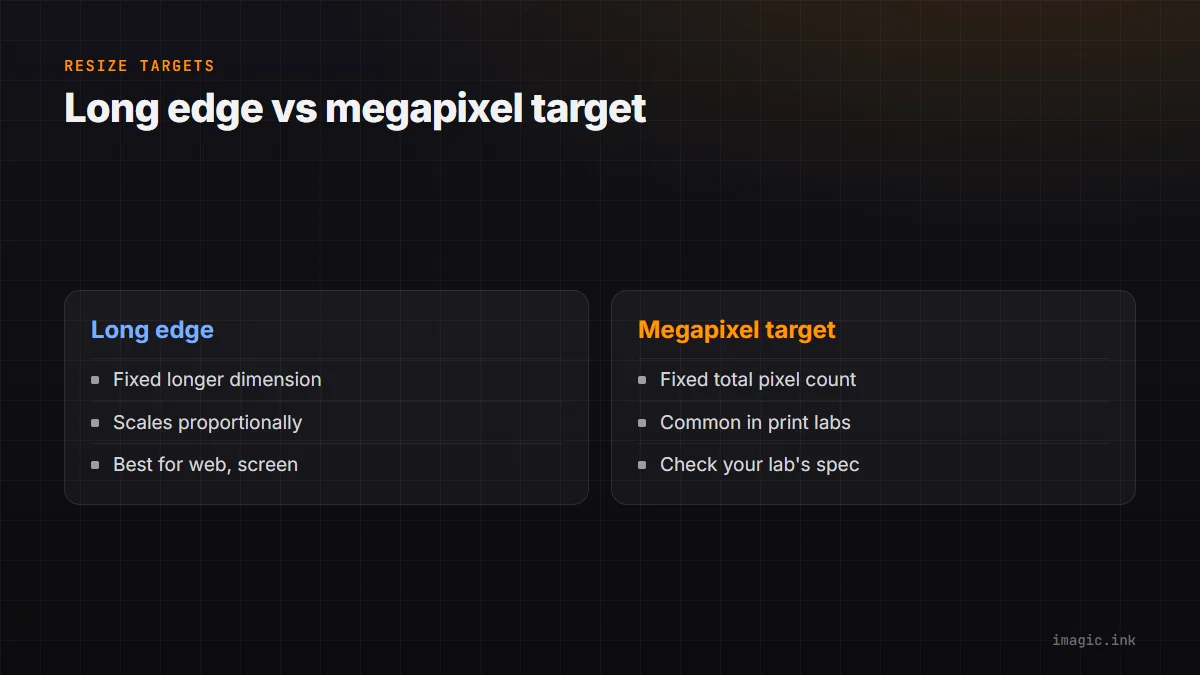
- Long edge (in pixels): set the longer dimension (width or height, whichever is bigger) to a fixed number, and the shorter dimension scales proportionally. This is intuitive for screen display, since it directly controls how large the image appears.
- Megapixel target: set a total pixel count regardless of aspect ratio. This is more common in print workflows, where a lab might specify a minimum megapixel count for a given print size rather than exact dimensions.
For web and client gallery delivery, long edge is usually the more practical target since it maps directly to how large the image displays. For print, check what your specific lab asks for, some specify long edge and DPI, others specify megapixels.
Keeping Aspect Ratios Intact
A batch resize should almost always preserve the original aspect ratio rather than forcing every photo to an identical width and height, which would stretch or squash images shot at different crops. Setting a long-edge target with proportional scaling (the standard approach in any competent batch tool) avoids this automatically; the failure mode to watch for is a tool that offers "resize to exact dimensions" without a "maintain aspect ratio" option checked, which will distort any photo whose native aspect ratio does not match the target.
When Upscaling Is Acceptable
Downscaling (making an image smaller) is safe and lossless in the sense that no real detail needs to be invented. Upscaling (making an image larger than its native resolution) is a different problem: the software has to invent pixels that were not in the original data. Modest upscaling, roughly up to 25 to 50% beyond native resolution, can look acceptable for screen viewing where the enlargement is not scrutinized closely. Heavy upscaling, doubling resolution or more, for large-format print is where quality loss becomes visible unless you are using dedicated AI upscaling built for that specific job, which is a different tool than a standard batch resize step.
Where imagic Fits
imagic's export step resizes on export rather than altering the working file, supports both long-edge and dimension-based targets, and applies consistently across a batch. It exports to JPEG or TIFF, processed locally on Windows or Mac. Try single-photo resizing free at the web editor, or the batch workflow with the desktop free trial. See Batch Export Photos: Step by Step for the fuller export process.
Frequently asked questions
Does resizing on export affect my original RAW file?
No, in a properly built workflow. Resize-on-export creates a new output file at the target size while leaving the original working file untouched at full resolution.
What resize target should I use for a client web gallery?
A long edge of roughly 2000 to 2500 pixels is a common, practical default: large enough to look sharp on most screens, small enough to load quickly.
Is it safe to batch resize hundreds of photos with different aspect ratios in one pass?
Yes, as long as the tool preserves aspect ratio per image rather than forcing identical dimensions. Long-edge resizing with proportional scaling handles mixed orientations and crops correctly in one batch.
Try imagic's free web editor, or start the 7-day desktop free trial for batch resizing. Start the free trial.