Sony's ARW format covers three different things depending on camera and menu setting: compressed, lossless compressed, and uncompressed. That matters before you even open a batch converter, because the source file's compression affects how much real detail is available to convert. Here is a practical path to ARW to JPG conversion that keeps quality where it counts and speeds it up where it does not.
Know Your Source Before You Convert
Older Sony bodies and some current ones default to compressed ARW, a lossy format that discards some tonal data to shrink file size. Newer bodies (A7 IV, A7R V, A1 and later) offer lossless compressed ARW as an option, which shrinks the file without discarding data, and uncompressed, which is largest and slowest to write. If you shot compressed ARW, the ceiling on shadow recovery and fine gradation is already set; no converter recovers detail that was never recorded. If you shot lossless or uncompressed, you have real headroom to use before export.
Check your camera's RAW setting before a shoot that matters. For most working use, lossless compressed is the sensible default: real quality, meaningfully smaller files than uncompressed.
Batch Settings That Actually Matter
Converting one ARW to JPG is trivial. Converting 800 from a shoot without wrecking consistency is the actual problem. A few settings decide most of the outcome:
- White balance: if the shoot has mixed lighting, batch by lighting condition rather than applying one white balance to everything
- JPEG quality: 85 to 92 is typically the sweet spot for delivery, high enough that compression artifacts are not visible, small enough to not bloat a gallery
- Color space: sRGB for web and client galleries, since most browsers and phones assume it; Adobe RGB only if the destination explicitly asks for it
- Resize on export: match the output to where it is going rather than always exporting full resolution
imagic reads ARW natively through its own built-in RAW engine and applies these settings across a batch in one export pass, so a folder of a few hundred files does not mean a few hundred manual clicks.
Export Sharpening: A Separate Step From Capture Sharpening
Whatever sharpening you applied while editing is capture sharpening, tuned to make the RAW data look correct on screen. Export sharpening is a second, smaller pass applied specifically for the output size and medium: a touch more for web delivery viewed at full resolution, noticeably more for anything getting resized down heavily (downsizing softens an image, so it needs a bit more sharpening to compensate), and typically none extra for print, where the lab's own RIP usually handles it. Treating these as one step is a common reason batch exports look either soft or oversharpened depending on destination.
Web Delivery vs Print Delivery: Different Targets
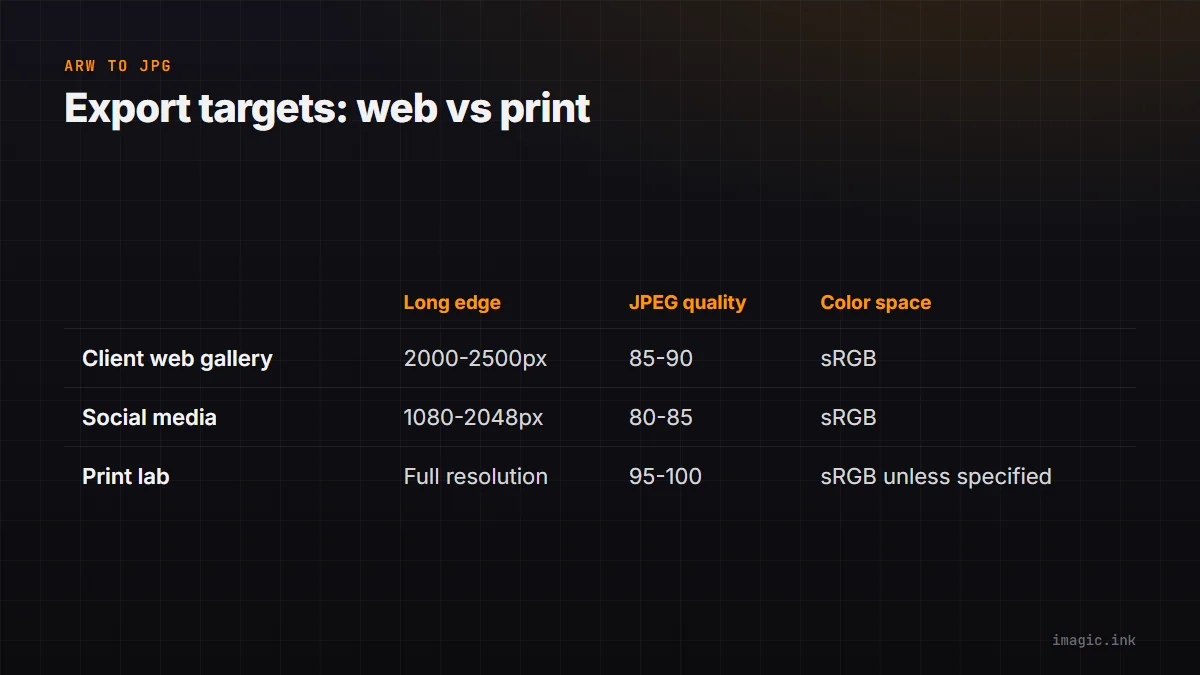
| Destination | Long edge | JPEG quality | Color space |
|---|---|---|---|
| Client web gallery | 2000 to 2500px | 85 to 90 | sRGB |
| Social media | 1080 to 2048px | 80 to 85 | sRGB |
| Print lab | full resolution or per lab spec | 95 to 100 | sRGB unless lab specifies otherwise |
Setting up two or three export presets once, rather than reconfiguring settings every session, is the single biggest time saver in a batch ARW to JPG workflow. For the broader export mechanics, see Batch Export Photos: Step by Step.
Where imagic Fits
imagic is a one-time-purchase desktop app for Windows and macOS (Lite around EUR 19, Plus around EUR 49, Max around EUR 99) with a free 500-export trial and no card required. It reads ARW along with eight other RAW formats, processes locally with nothing uploaded, and exports to JPEG or TIFF with per-preset batch settings. For Sony-specific detail on file handling before you convert, see the ARW format page and Sony ARW Files: Free Processing. More general RAW guides live in the Guides section of the blog.
Frequently asked questions
Does converting ARW to JPG lose quality?
Some loss is inherent to JPEG's compression, but at quality 85 or above it is not visible in normal viewing. The bigger quality factor is usually the source ARW's own compression setting, not the JPG export step.
Can I batch convert ARW to JPG for free?
Yes. imagic's free 500-export trial includes full batch export, and several open-source RAW tools also handle ARW conversion at no cost, though batch consistency and speed vary between them.
Should I always export at full resolution?
No. Match resolution to destination: a phone-viewed web gallery does not need a 33 or 61 megapixel file, and serving oversized JPEGs just slows down client viewing for no visible benefit.
Try imagic free for 500 exports, no card required. Start the free trial.