Can You Edit Photos With ChatGPT? It Depends Which Part of the Ecosystem You Mean
People asking "how do I edit photos with ChatGPT" are usually really asking one of two different things: either "can I use OpenAI's coding agent to automate my photo culling," or "can I paste photos into the ChatGPT app and have it edit my RAW files." The honest answer is different for each. imagic connects to the OpenAI ecosystem through MCP, and the concrete, working path today is Codex CLI, OpenAI's terminal coding agent, which supports local MCP servers directly. ChatGPT's own MCP connector support varies by plan and client version, so treat that path as something to check for your specific setup rather than assume works the same way.
This guide covers the part that works reliably right now: connecting imagic to Codex CLI, running the same real workflow beats as any other MCP client, and being straight about where the ChatGPT app itself stands.
What Actually Happens: MCP, Not Native Photo Editing
To be direct about the honesty of the claim in the title: ChatGPT does not natively edit photos inside imagic. What makes this possible is the Model Context Protocol (MCP), an open standard that lets an AI agent call external tools. imagic ships an MCP server built into the app itself, part of imagic Max, and any MCP-compatible client, Codex CLI included, can connect to it and call its scan, cull, style, and export tools. The AI isn't touching pixels directly, it's calling the same functions imagic's own interface calls, and you can watch every edit land in imagic's normal, non-destructive edit history afterward.
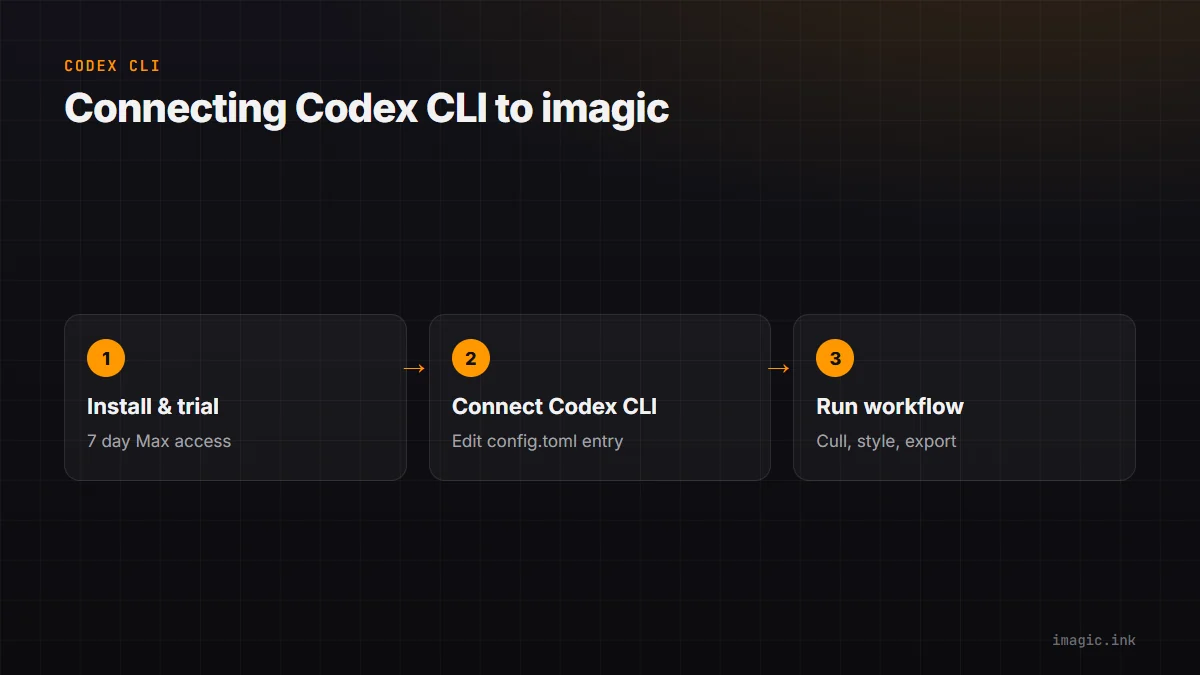
Step 1: Install imagic and Start the Free Trial
Same starting point regardless of which AI client you use. Get the installer from imagic's desktop page, start the free 500-photo trial (no credit card, includes full Max access), activate with the trial key on first launch. MCP and the CLI are an imagic Max feature; the trial unlocks them so you can test this before buying anything.
Step 2: Connect Codex CLI to imagic's MCP Server
Codex CLI reads MCP server definitions from its config file, typically ~/.codex/config.toml. Add an entry for imagic:
[mcp_servers.imagic]
command = "imagic-mcp"
If the binary isn't on PATH, or you're on Windows and want to point at the packaged app directly, use the full path instead:
[mcp_servers.imagic]
command = "C:\Program Files\imagic\imagic.exe"
args = ["--mcp"]
Restart Codex CLI (or start a new session) and it should list imagic's tools alongside its own. From here the workflow is the same shape as any MCP client: you describe what you want in plain English, Codex CLI figures out which tools to call and in what order.
Step 3: The Same Workflow Beats, Run Through Codex
Run the same shape of first prompts as you would in any MCP client, adapted for a real Codex CLI session:
Scan ./shoot-aug-09, cull it with duplicate and burst
detection, and give me a ranked shortlist with the
reasoning for each top pick.
Codex CLI calls imagic's scan and quality-scoring tools, groups near-duplicates, and returns a shortlist. From there, run style calibration the same way you would with any client:
Walk me through style calibration using photos already
in my library.
imagic pulls up to 8 scenario photos from your own library and has you edit them the way you normally would, then uses that as the basis for future automated edits, whichever MCP client is driving the session. And the re-selection move works identically: ask for your best N against a new threshold and imagic re-ranks against scores it already computed, no re-analysis pass needed. For the tool-call breakdown in more depth, see How to Edit Photos with Claude Code, which walks the same categories of tools with a different client at the wheel.
What About the ChatGPT App Itself?
This is the part to be plain about. OpenAI's own connector support for MCP inside the ChatGPT app varies depending on your plan tier and which client version you're running, and it changes over time. If your ChatGPT setup does support connecting to a local or remote MCP server, the same imagic server and tool surface applies, wire it up the way that connector expects. But don't assume it's available by default, and don't expect to paste a RAW file into a ChatGPT chat window and have it batch-cull a wedding shoot. The reliable, working-today path for OpenAI's tools is Codex CLI, because it supports local MCP servers directly as a core feature, not an optional connector that may or may not be enabled for your account.
Security and Local Processing
Whichever client is driving, the MCP server runs locally on your machine alongside imagic. No photos are uploaded to imagic's servers, and the AI client talks to the server over your own computer. The exception is the client's own model call, Codex CLI or ChatGPT still needs its own connection to OpenAI to reason about your request, but the images themselves stay local. For a deeper look at the security model and the full tool surface, see Photo Editing MCP: The Complete Guide.
Troubleshooting the Codex CLI Setup
Codex CLI doesn't list imagic's tools after adding the config block
Config files are read on startup, so a running session won't pick up a change made to ~/.codex/config.toml mid-session. Close Codex CLI fully and start a fresh session. If the tools still don't appear, check the TOML syntax carefully, a missing closing bracket or an incorrectly quoted path silently drops the whole server entry.
Tool calls return an activation or licensing error
This is the Max gate. MCP and the CLI are part of imagic Max, not Lite or Plus. Confirm your trial is still inside its 500-photo budget and that you activated with the trial key on first launch of the app, installing alone isn't enough.
The path in the config block has spaces or backslashes and Codex CLI errors on parsing it
Windows paths with spaces, like C:\Program Files\imagic\imagic.exe, need to stay inside quotes in the TOML entry exactly as shown above. Forward slashes usually parse fine too if backslash escaping gives you trouble: C:/Program Files/imagic/imagic.exe.
Why This Matters Beyond Which Chat Window You Type Into
It's tempting to treat "ChatGPT" and "Codex CLI" as interchangeable labels for the same company's AI, but for a task like driving an MCP server, the actual client matters more than the brand behind it. Codex CLI is built as a terminal coding agent with first-class local tool support baked in, which is exactly the shape of thing an MCP server needs, a client that can hold a local config file, spawn a local process, and keep a session's context across several tool calls in a row. The ChatGPT app is built primarily as a conversational interface, and whether it exposes that same first-class local tool support depends on the specific plan and version you're running at any given time. Neither is better in the abstract, they're built for different jobs, and right now the terminal agent is the one built for this particular job.
FAQ
Does ChatGPT edit my photos directly?
No. imagic connects to the OpenAI ecosystem through MCP. Codex CLI supports local MCP servers directly, which is the concrete working path today. ChatGPT's own MCP connector support varies by plan and version, check your specific setup rather than assuming it works out of the box.
Is Codex CLI free to use?
That depends on your OpenAI account and plan, separate from imagic. imagic's own cost is the free 500-photo trial (no card required, full Max access), then a one-time license from EUR 19 if you keep it, with MCP and the CLI included in the Max tier.
Do I need coding skills for the config file edit?
You need to open a text file and add a few lines once. After that setup step, you talk to Codex CLI in plain English for every actual editing session.
Can I switch between Codex CLI and Claude Code on the same imagic install?
Yes. The MCP server itself doesn't care which client is calling it, both just need their own config pointed at imagic-mcp. Your style calibration and edit history are shared, they live in imagic, not in the AI client.
Try It on Your Next Shoot
Start with imagic's free 500-photo trial (no credit card, full Max access included), connect Codex CLI with the config above, and run the shortlist prompt on a real folder before deciding if this workflow fits how you edit.