
Editing Photos With Claude Code Is Now a Real Workflow, Not a Party Trick
If you already live in Claude Code for writing and refactoring code, you can point the same terminal session at a folder of RAW files and have it cull, edit, and export a real photo shoot. This works because imagic is the first photo editor with a built-in MCP server: no plugin, no separate script layer, no export-then-reimport round trip. The server ships inside the app itself, as part of imagic Max, and the free 500-photo trial includes full Max access so you can try this exact workflow before paying anything.
This is a full walkthrough: installing the trial, connecting Claude Code, the first three prompts worth running, what's actually happening on each MCP tool call, and the two mistakes that account for most setup failures.
Step 1: Install imagic and Start the Free Trial
Grab the installer from imagic's desktop page and start the 500-photo free trial: enter your email, verify a 6-digit code, and you'll get a time-limited activation key. No credit card is required, and the trial unlocks everything in imagic Max, including the CLI and the MCP server, not just the basic editor. Install, launch, and activate with the key before moving on. MCP tool calls will fail silently, or return an activation error, if the app isn't activated yet.
Step 2: Connect Claude Code to imagic's MCP Server
If you installed the packaged desktop app on Windows, register the server with:
claude mcp add imagic -- imagic-mcpClaude Code will confirm the server connected and list the available tools. Start a fresh session in the folder you want to work from (or just tell Claude Code the path), and you're ready for the first prompt.
Step 3: Your First Prompt, Cull a Folder
The most useful first test is the most common real task: turning an unsorted folder of RAWs into a shortlist. Try something like:
Scan ~/Photos/2026-08-Wedding, analyse every photo for
sharpness, exposure, noise, and composition, group
duplicates and burst sequences, and show me the top pick
from each group.
Behind that one sentence, Claude Code is making a sequence of MCP tool calls: a scan/import call that indexes the folder, a quality-scoring call that rates every frame, a duplicate and burst-detection call that clusters near-identical shots, and a selection call that surfaces the best frame per cluster. You get a shortlist back in the chat, with the reasoning attached, instead of scrubbing through 400 near-identical frames by hand.
Second Prompt, Teach It Your Editing Style
Culling alone is useful, but the bigger unlock is style calibration. Ask Claude Code to run it:
Run style calibration using my library.imagic pulls up to 8 scenario photos from your own library, covering a spread of lighting and subject types (fewer if your library doesn't cover every scenario yet), and walks you through editing them the way you normally would. It watches the exposure, color, and crop choices you make and uses that pattern for future automated edits. This isn't a generic preset borrowed from someone else's Instagram grid, it's your own decisions, learned from your own photos. You can re-run it any time your style shifts, and every AI-driven edit still lands in imagic's normal edit history, so nothing is applied silently or irreversibly.
Third Prompt, a Real Selection Task
Once calibration is done, the workflow that saves the most time is a targeted reselect. For example, picking a portfolio set from a big shoot:
From the culled set, apply my style, then give me my
best 100 for a portfolio, weighted toward variety of
subject and composition, not just top scores.
This is where instant re-culling matters: if the first pass gives you 140 candidates and you want exactly 100, you don't need to re-run quality analysis from scratch. Tell it to re-rank against the new threshold or the new "keep my best N" target, and it reorders using the scores it already has. Change your mind again five minutes later, same thing, no re-analysis pass.
What Each Category of MCP Tool Actually Does
imagic exposes a full set of tools through its MCP server, and it helps to think of them in five groups rather than as a flat list:
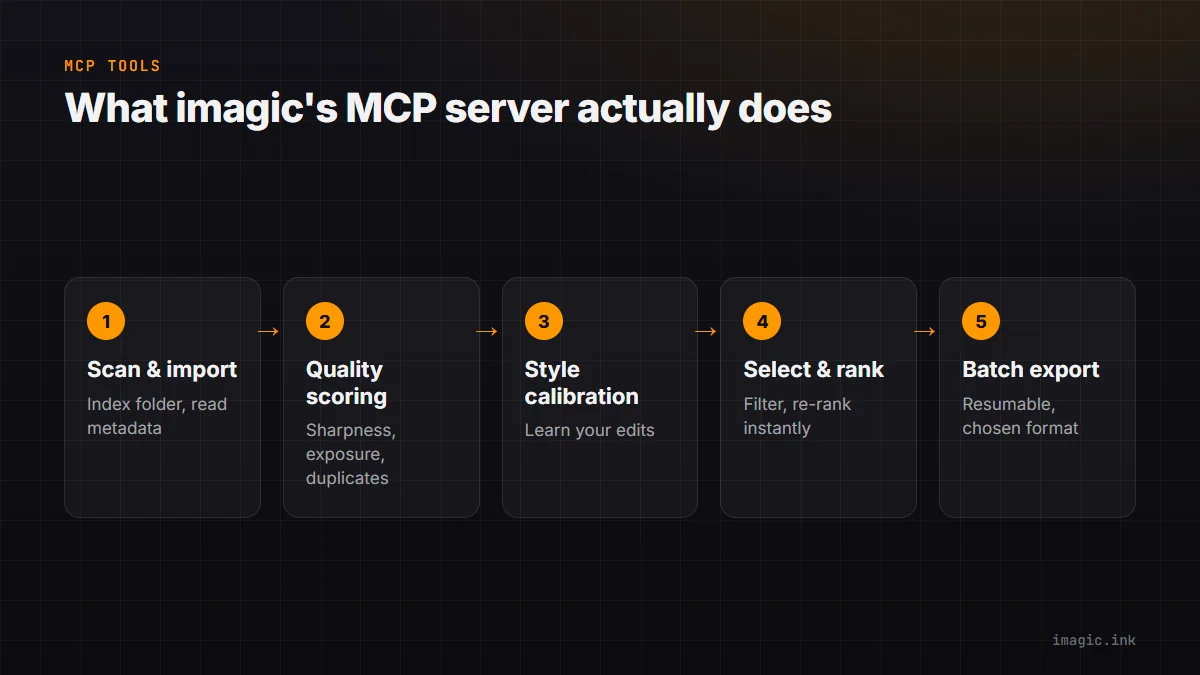
- Scan and import: indexes a folder, reads RAW metadata, and prepares files for analysis.
- Quality scoring and duplicate detection: the AI culling engine, sharpness, exposure, noise, composition scoring, plus burst and near-duplicate grouping. This tier is available on every plan, not just Max.
- Style calibration and adjustments: the guided calibration flow, plus applying learned styles or saved presets across a batch.
- Selection and re-culling: rating, filtering, and instantly re-ranking a shoot against new thresholds without re-scoring.
- Batch export: resumable export to your chosen format and size once the keepers are set.
For the full breakdown, including a client compatibility table, see Photo Editing MCP: The Complete Guide.
Troubleshooting
Claude Code connects but tool calls fail or return nothing
The most common cause is the Max gate. MCP and the CLI are part of imagic Max; Lite and Plus don't include them. If you're on the trial, confirm it's still active and that you activated with the trial key on first launch, not just installed the app. If you bought Lite or Plus, you'd need to upgrade to Max to use MCP (existing customers from before the tier split are grandfathered to Max as Founders).
"imagic-mcp: command not found"
This means Claude Code can't find the executable on PATH. On Windows, point at the installed binary directly instead:
claude mcp add imagic -- "C:\Program Files\imagic\imagic.exe" --mcpStyle calibration keeps asking for more photos than I have
Calibration draws from your own library, so a thin library covers fewer scenario types. It runs with what's available rather than blocking, but the resulting style profile improves as your library grows. Re-run it later once you've imported more shoots.
FAQ
Do I need to know how to code to use this?
No. You run one setup command once, then talk to Claude Code in plain English. It translates your request into the right MCP tool calls.
Does this work without an internet connection?
Photo processing happens locally, the MCP server runs on your machine, and no photos are uploaded anywhere. Claude Code itself needs its own connection to reach the model, but your images never leave your computer through imagic.
Can I use this on a Mac?
Yes, imagic runs on Windows and macOS, and the MCP setup is the same claude mcp add imagic -- imagic-mcp command on both, assuming the binary is on PATH.
What if I want the raw automation without an AI client?
imagic's headless CLI has been scriptable independently of MCP: imagic --headless --scan DIR --analyse --export runs the same pipeline without a chat interface. See AI Agent Photo Editing: A Real Workflow for a full shoot walked through both ways.
Start With the Trial
None of this requires committing to a purchase first. imagic's free 500-photo trial includes full Max access, MCP and the CLI included, no credit card required. Install it, run claude mcp add imagic -- imagic-mcp, and try the cull-and-shortlist prompt above on your next real shoot before deciding whether Lite, Plus, or Max fits how you work.