Two Approaches to Editing Speed
The two dominant approaches to faster photo editing are: presets (pre-saved settings applied with one click) and AI (algorithms that automatically make editing decisions). In 2026, AI tools have matured enough to genuinely challenge the preset workflow that has dominated photography for a decade. This comparison looks at where each approach excels and where it falls short.
How Presets Work
A preset stores a fixed set of editing parameters — exposure, contrast, HSL adjustments, tone curves, grain, vignette — that can be applied to any photo with a single click. The preset assumes that the same settings work across different photos, which is often approximately true for photos from the same shoot under similar lighting, but less true across different subjects and lighting conditions.
Presets excel at: consistency within a controlled environment, applying a recognizable style quickly, and establishing a starting point that requires minimal adjustment. They struggle with: variable lighting (a wedding preset that looks great in the church looks wrong in the harsh noon sun), very different subject matter, and the need for per-image variation.
How AI Editing Works
AI editing tools analyze the content of each image and make context-aware adjustments. An AI that recognizes "this is a face in warm light" applies different settings than one that recognizes "this is a landscape in blue hour." This context sensitivity means AI editing tends to produce more consistent results across variable lighting conditions than presets do.
imagic's AI operates at the culling stage — analyzing sharpness, exposure, noise, composition, and detail to select the best frames before editing begins. This is a different and complementary function to AI editing tools that work on individual photo adjustments.
Time Comparison: Real Numbers
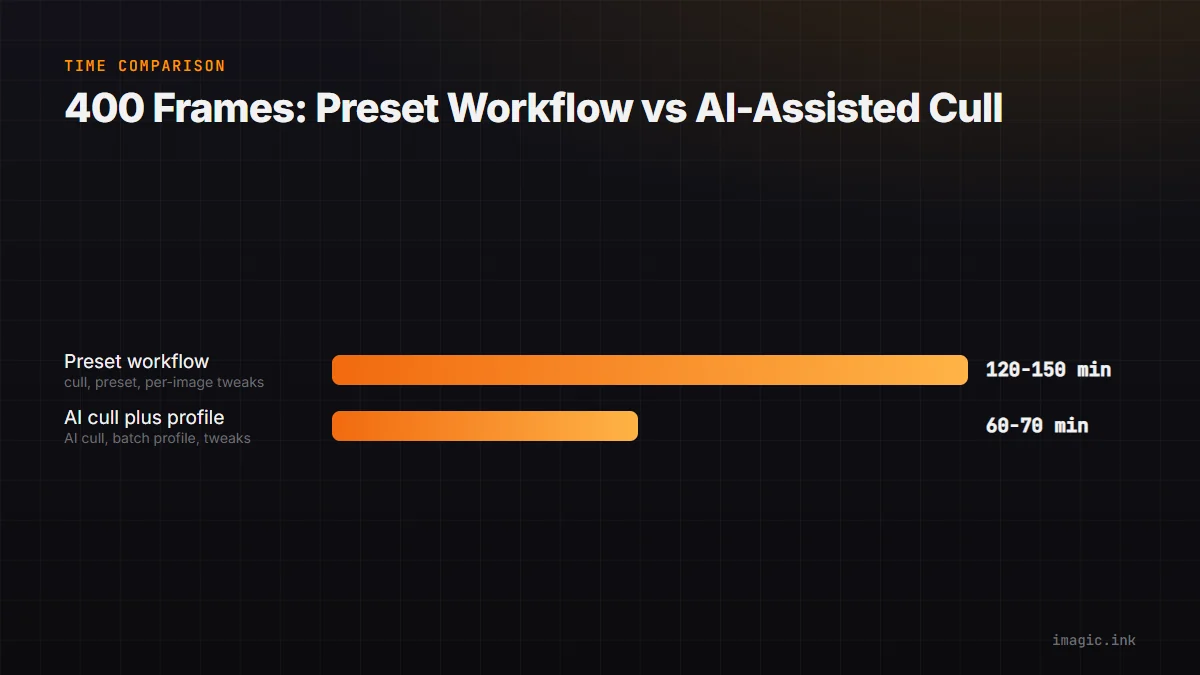
For a 400-frame portrait session:
- Preset workflow: 60-90 min manual cull + 30 min preset application + 30 min per-image tweaks = 2-2.5 hours
- imagic AI cull + RawTherapee batch: 20-30 min AI-assisted cull + 20 min batch profile + 20 min tweaks = 60-70 min
The AI-assisted cull is the biggest time saver. Applying a processing profile (equivalent to a preset) in RawTherapee is as fast as applying a Lightroom preset, and the batch export handles all selected images simultaneously rather than requiring individual clicks.
The Preset's Enduring Advantages
Presets have genuine advantages over AI editing in specific scenarios:
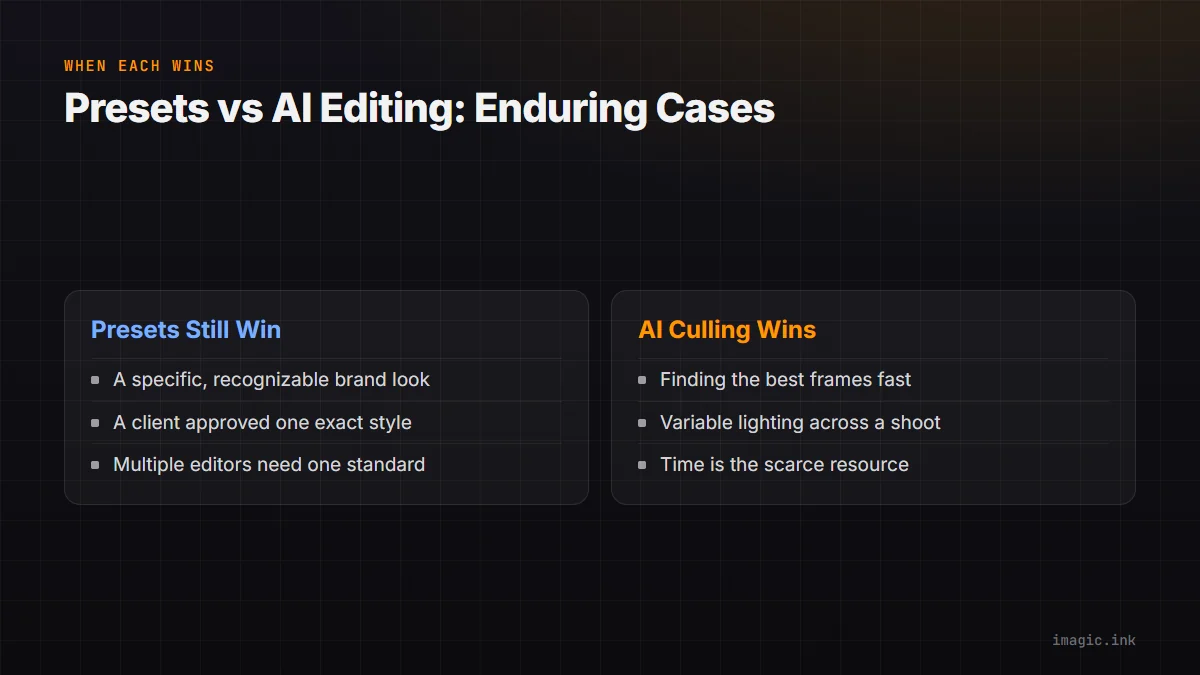
- When you need a very specific, recognizable style that matches your brand identity exactly
- When working with a client who has approved a specific look
- When processing is done by multiple people and consistency requires defined standards
These advantages apply to RawTherapee PP3 profiles just as much as Lightroom presets — the "preset" concept translates across tools.
The Hybrid Approach
The best workflow in 2026 combines both: AI culling (imagic) to select the best frames quickly, then processing profiles (RawTherapee PP3) for consistent, fast batch treatment. You get the speed advantages of both approaches without the limitations of either used alone.
The Cost Factor
Lightroom presets require a Lightroom subscription ($9.99/month). RawTherapee profiles are free, imagic starts from EUR 19 one-time (free 500-export trial), and community profile packs are free. The hybrid AI + profile approach costs a fraction of the $120+/year for the preset-only workflow in Lightroom.
Frequently asked questions
Do presets still matter now that AI editing exists?
Yes, for specific cases: a defined brand look, a client-approved style, or consistency across multiple editors all favor presets or profiles over automated AI adjustments. The two approaches solve different problems rather than fully replacing one another.
Where does most of the time saving actually come from, presets or AI?
In the numbers above, the AI-assisted cull accounts for most of the saved time, cutting a 60-90 minute manual review down to 20-30 minutes. Applying a preset or a RawTherapee profile takes roughly the same time either way.
Can I combine AI culling with my existing preset library?
Yes. imagic only handles the cull stage, so any preset-equivalent RawTherapee profile you already use can be applied in batch to the frames imagic selects. See more software comparisons for related workflow breakdowns.