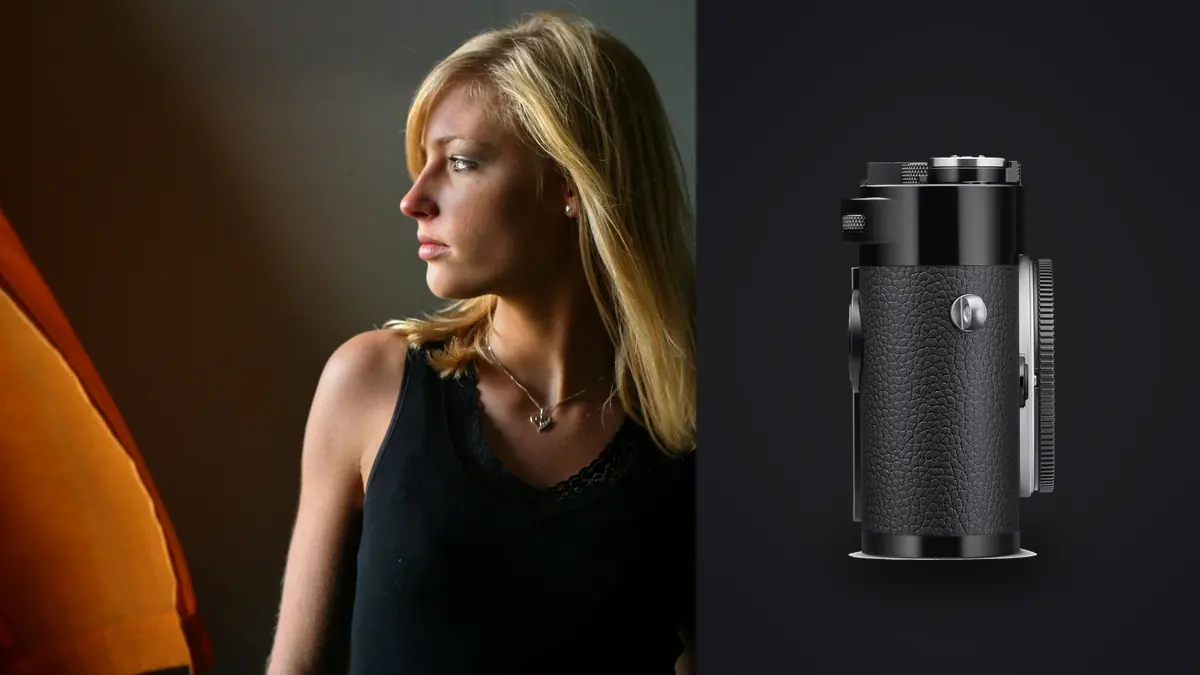
A Leica M11 boudoir and intimate portrait RAW Workflow is built around deliberate capture, manual focus, and controlled access to private DNG files. The rangefinder does not offer eye-detection autofocus, so the edit must distinguish a purposeful soft rendering from a focus plane that missed the intended eye. Consent and privacy decisions must remain attached to the selection from card to delivery.
The M11 can record DNG files at several resolution settings and provides internal storage alongside an SD card. Those options can improve resilience when configured clearly, but they can also create two locations that are copied or cleared inconsistently. A written source-of-truth rule is essential before the first private frame is made.
Define consent as workflow metadata
Record the agreed capture scope, people allowed on set, review process, delivery audience, retention period, and deletion expectations. Portfolio, social, publication, and third-party sharing should be separate permissions rather than one broad assumption. Store the agreement securely and connect it to the project without placing intimate descriptions in public filenames.
Use a neutral project code. Names may be appropriate inside controlled records, but exports and temporary proof folders should reveal only what their recipients need. If consent changes, mark affected frames and derivatives immediately. A withdrawn image must be traceable across proofs, finals, backups, and publication logs.
Keep camera clocks correct and note any second body. Accurate chronology helps match a frame to a wardrobe, pose boundary, or review discussion. It also helps determine whether a later capture falls inside a changed consent instruction.
Choose DNG resolution from the deliverable
The M11 offers several DNG resolution choices. Select one for a clear reason: final output, crop requirement, lens rendering, storage policy, and the detail appropriate to the portrait. Changing resolution during a session can complicate batch review, so mark the transition and avoid mixing settings casually within one pose sequence.
Higher resolution exposes focus error, camera movement, fabric texture, and skin detail more clearly. That does not mean the largest setting is always required. A smaller output can benefit from a moderate source file, while a carefully lit print or crop may use the full setting. Verify the entire editing chain before committing an important session.
Keep white balance and preview contrast restrained. A dramatic JPEG preview can make shadows appear blocked or skin appear smoother than the DNG will look during development. Use the preview to judge framing and mood, then check exposure through the histogram and representative RAW review.
Make manual focus reviewable
Rangefinder focus depends on calibration, technique, lens, distance, and the subject remaining near the chosen plane. Focus on the intended eye or another defined feature, then avoid leaning after alignment. At close distance and wide aperture, normal breathing can move the subject or camera beyond the useful depth.
Create a small sequence with deliberate pauses rather than firing continuously through movement. Refocus after a turn, major distance change, or switch between seated and standing poses. If live view is used for a difficult angle, magnify the relevant feature and return to full-frame composition before capture.
Record why a softer frame might remain valuable. A moving veil, reflected silhouette, or deliberately diffused portrait should not be rejected solely because it lacks crisp eyelashes. Conversely, artistic intent should not be used to excuse a missed plane when the photograph depends on direct eye detail.
Use internal storage and SD media intentionally
Decide whether files write to internal storage, the SD card, or both according to available camera settings and the privacy plan. Verify with test exposures and read both locations. Do not assume that seeing a file in playback proves it exists in each destination. Write the chosen arrangement into the session checklist.
After capture, copy each authoritative source to a controlled working folder and separate verified backup. If internal and card files duplicate one another, compare identifiers before creating needless extra copies. If they contain different ranges, reconcile the complete sequence before clearing either source.
Encrypt storage where the risk model requires it and restrict accounts, previews, and backup access. Avoid automatic consumer photo sync for private material unless it is explicitly approved and configured. The most elegant camera process still fails if operating-system previews or shared folders expose the session.
Cull in consent-first passes
The first pass should remove from active consideration any frame outside the agreed boundary, while preserving it only as required by the retention policy and legal context. The second checks expression, pose, garment position, reflections, and identifying room details. The third compares focus, movement, exposure, and composition among approved candidates.
Do not ask an automated score to determine dignity or comfort. A technically strong photograph can remain unsuitable because of expression, body position, accidental exposure, or a private object in the background. Include the subject's review or selection stage exactly as agreed, using proofs that do not disclose more resolution or metadata than needed.
Keep alternates through approval. Two frames may differ subtly in posture or gaze, and the subject may prefer the one that is not the photographer's technical favorite. Ratings should identify approval source and state, such as photographer candidate, subject approved, final retouch, and delivered.
Use local analysis as a limited aid
imagic supports DNG files and performs processing locally on Windows or macOS. It can assess sharpness, exposure, closed eyes, and composition and group near-duplicates. This can organize a manual-focus sequence, but it cannot understand consent, body-language comfort, or why a softly rendered frame was intentional.
Culling in imagic sets a status and does not delete the source. That reversibility is useful while approvals change, but it does not replace the agreed retention policy. A file that must be deleted requires a separate, verified deletion process across every authorized copy when the time comes.
Limit the library and workstation account to the people authorized for review. Local-only processing means photos are not uploaded by imagic, but other backup agents, preview services, or shared operating-system folders can still move them. Audit the complete environment.
Develop skin and fabric from a neutral base
Begin with lens correction, exposure, and white balance under the subject's actual light. Mixed window, practical, and LED sources can place different color on separate parts of the body. A global temperature slider cannot neutralize every source. Keep intentional warmth, but correct distracting spill through lighting choices or local work.
Protect broad skin highlights and textured fabric. A small specular point may be bright, while a featureless shoulder or satin panel usually needs attention. Lift deep shadows only when they contain needed information. Excessive recovery can reveal noise and color shifts that weaken the quiet tonal design.
Apply sharpening and noise reduction at final output scale. The M11's fine detail can make normal texture look severe at close screen magnification. Preserve natural skin and material structure. Use a dedicated retouching application when localized cleanup is approved, since a global blur or texture reduction rarely respects eyes, hair, fabric, and skin equally.
Keep retouching decisions traceable
Define what may be changed before detailed work begins. Temporary blemishes, lint, or a backdrop mark may be within scope, while body shape, permanent features, tattoos, or identifying marks may require explicit direction. Never assume that a technically possible edit is desired.
imagic stores non-destructive adjustments and exports JPEG or TIFF, but it does not have layers or generative fill, and its retouching is limited to the Heal / Remove brush, red-eye correction and portrait polish in Plus and Max. Export an appropriate high-quality file to the chosen specialist editor and retain the DNG identifier in the master name. Keep an editable retouch master rather than flattening the only approved version.
Separate proof watermarks or low-resolution review files from clean finals. A proof should not accidentally become a public asset, and a full-resolution master should not be sent merely to collect a yes or no. Use access-controlled delivery that matches the agreement.
Control proof and monochrome versions
Create proofs at a size and quality appropriate for selection, with neutral identifiers that map back to DNG files. Apply watermarks only when the agreement calls for them, and keep watermarked derivatives separate from clean finals. A proof gallery should not expose internal storage paths, private metadata, or unapproved alternates.
If both color and monochrome versions are offered, treat them as explicit variants rather than overwriting one edit. Monochrome can emphasize line, gesture, and light, but it should not become a way to hide difficult mixed color without review. Preserve the color-capable DNG and record which version received approval.
Collect decisions against stable file IDs instead of gallery positions that can change. Confirm replacements and withdrawals before final rendering. When approval ends, remove temporary proofs according to the retention policy while keeping only authorized masters and records. Log the removal date and scope for later accountability securely.
Export only the approved set
Confirm the approved photo IDs, crop, color or monochrome version, dimensions, profile, compression, metadata, filename, and destination. JPEG suits many finished deliveries, while TIFF may be used for a high-quality downstream step. Exporting every keeper can expose alternates that were never approved.
The imagic desktop page explains local culling and non-destructive export. The AI and Technology articles provide context for automated photographic tools. Neither link replaces the session's consent, encryption, access, retention, and deletion policy.
Open each rendered file outside the editor, inspect skin gradients, dark fabric, edge details, crop, and metadata, then compare the count with the approved list. Record delivery and any withdrawal or replacement. Archive only the copies allowed by the agreement and remove temporary proofs when their purpose ends.
Use a private M11 RAW workflow checklist
- Consent: separate capture, review, delivery, portfolio, and publication permissions.
- Identity: use neutral project codes and controlled private records.
- Resolution: choose the DNG setting from output and crop needs.
- Focus: pause, align the rangefinder, and recheck after distance changes.
- Storage: verify internal and SD destinations rather than assuming copies.
- Backup: create controlled, verified storage before clearing the camera.
- Cull: apply boundaries and dignity before technical ranking.
- Develop: preserve skin, fabric, light character, and natural texture.
- Retouch: document approved changes and retain source traceability.
- Deliver: export only approved files and audit privacy metadata.
Frequently asked questions
Can autofocus scoring replace manual focus review on the M11?
No. A sharpness signal can help organize files, but the photographer must verify the intended eye or feature and distinguish deliberate softness from a missed rangefinder plane.
Should M11 internal storage be treated as the only backup?
No. First verify how the camera wrote each file, then create a working copy and a separate controlled backup. Internal and card storage remain together until the files are moved safely.
Can imagic perform boudoir skin retouching?
No. imagic supports culling, non-destructive adjustments, and JPEG or TIFF export, but it has no layers, and its retouching is limited to the Heal / Remove brush, red-eye correction and portrait polish in Plus and Max. Use an approved specialist editor for localized work.