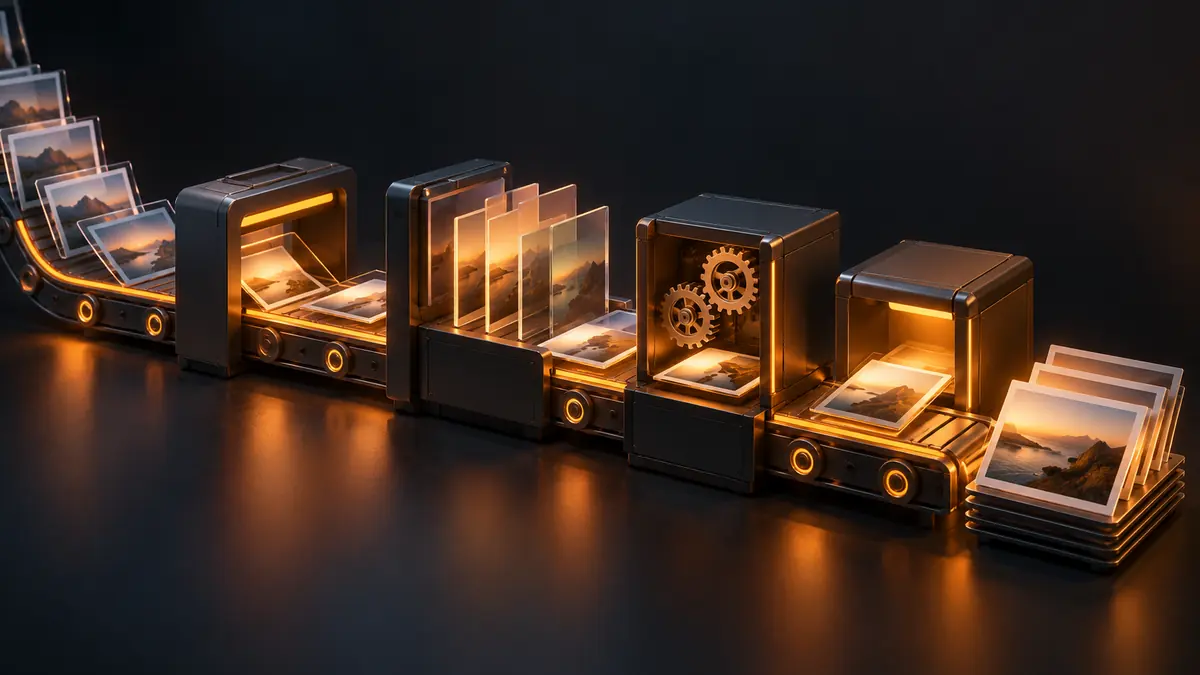
Why Put a Photo Editor in a Terminal
A photo editing CLI exists because clicking through the same import, cull, and export sequence for every shoot is exactly the kind of repetitive work computers are good at and humans are bad at repeating precisely. A command-line interface turns "open the app, click import, wait, click cull, adjust sliders, click export" into a single line you can run, re-run, schedule, or drop into a larger script. imagic's CLI is part of the Max tier, alongside the MCP server, and it's the layer that makes automation actually automatic instead of just faster clicking.
It also solves a problem the GUI can't: repeatability across machines and time. A GUI workflow lives in your muscle memory, which settings you clicked, in which order, which you'll eventually forget or apply inconsistently under deadline pressure. A CLI command is text. You can save it, version it, hand it to an assistant editor, or run the exact same pipeline on a laptop in a hotel room during a destination wedding without reconstructing your usual click sequence from memory.
The Real imagic CLI Flags
The core command follows one shape: point it at a folder, tell it what to do, tell it where output goes.
imagic --headless --scan ~/Shoots/2026-08-09-Wedding --analyse --export--headless runs without opening the GUI at all, which matters for scheduled jobs or a machine with no display attached. --scan DIR points the run at a folder of RAW or JPEG files. --analyse triggers the AI scoring pass, sharpness, exposure, noise, duplicate detection, across everything in that folder. --export writes out the results once analysis and any culling rules have run.
Culling Thresholds and Keep-Best
Two common ways to narrow a shoot down, both usable from the command line:
- Threshold culling: keep anything above a quality score, e.g.
--cull-threshold 60drops frames scored below 60 out of 100 for sharpness, exposure, and noise. - Keep-best-N: keep a fixed count regardless of score spread, e.g.
--keep-best 400returns your top 400 frames from the shoot. This is the more predictable option when you've already promised a client "at least 400 edited images."
Both approaches read the same underlying scores, they just apply a different cutoff rule. For the reasoning behind them, see How to Automate Photo Culling.
Applying a Style and Exporting
Once you've calibrated a style in the desktop app, imagic learns it from up to 8 guided edits, you can apply it from the command line too: --style-profile "my-wedding-look" alongside --export jpg --output ~/Delivered/2026-08-09-Wedding. The whole pipeline, scan, score, cull, style, export, runs as one command instead of a sequence of manual steps.
A Cron Recipe: Automatic Ingestion on a Schedule
If you're tethering a camera to a card reader that syncs to a watched folder overnight, or you simply want a nightly pass over the day's imports, a scheduled job does the work while you sleep. On macOS or Linux, a crontab entry like:
0 3 * * * /usr/local/bin/imagic --headless --scan ~/Shoots/Incoming --analyse --cull-threshold 55 --export --output ~/Shoots/Culledruns every night at 3am, scoring and culling anything dropped into the Incoming folder that day, and writing the survivors to a Culled folder ready for you to open in the morning. On Windows, Task Scheduler does the same job with the same command line. Either way, the idea is the same: the mechanical scoring pass happens on a timer, not on your evening.
The same recipe works for multi-day shoots. A conference photographer covering four days of sessions can point the scheduled job at a different subfolder each morning, so by the time the coffee's on, the previous day's shots are already scored, culled to a threshold, and waiting in a review folder instead of sitting untouched in a card dump.
A Full Pipeline Example
Strung together, the flags above cover an entire shoot without touching the GUI. A simple shell script for a same-day-delivery event might look like this:
#!/bin/bash
SHOOT=~/Shoots/2026-08-09-Conference
imagic --headless --scan "$SHOOT" --analyse
imagic --headless --scan "$SHOOT" --keep-best 250 --style-profile "event-look" --export jpg --output "$SHOOT/Delivered"
The first line runs the analysis pass once. The second applies a keep-best cutoff, your calibrated style, and exports to a delivery folder, all without re-scoring anything. Save that as a script, and a shoot that used to mean a laptop open until midnight becomes one terminal command before you head home.
When the CLI Beats the GUI, and When It Doesn't
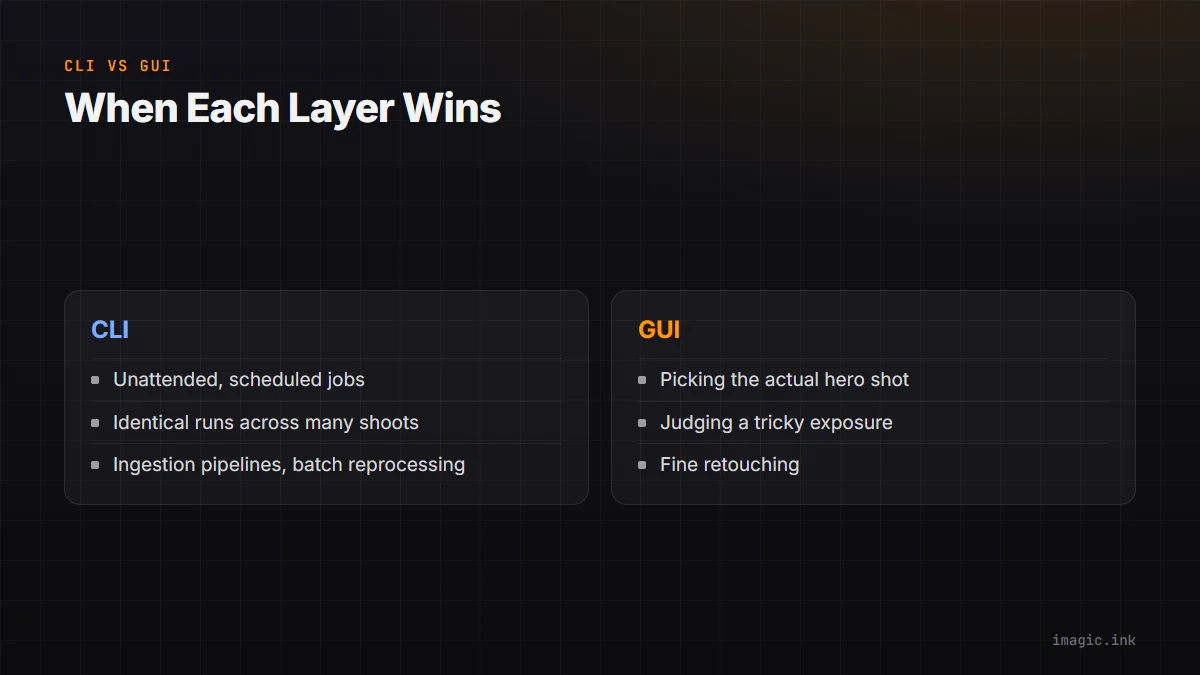
The CLI wins when a job needs to run unattended, on a schedule, or identically across many shoots. It's the right layer for ingestion pipelines, batch reprocessing an old archive, or triggering a cull the moment files land in a folder. It's the wrong layer for anything requiring a human look: picking the actual hero shot, deciding how far to push a tricky exposure, fine retouching. The GUI stays the tool for that half of the job. Most working pipelines use both: CLI for the mechanical first pass, GUI for the final human pass.
Pairing the CLI with the MCP Server
The CLI and the MCP server solve the same problem from two directions. The CLI is what you script and schedule yourself, flags you write once and reuse. The MCP server is what an AI agent drives on your behalf, so instead of you writing --cull-threshold 60 --keep-best 400, you tell an MCP client like Claude Code "keep my best 400 from last night's shoot" and it calls the same underlying operations. Under the hood, both routes talk to the same imagic Max engine, they just differ in who's issuing the commands, you or the agent. See how imagic's MCP server works for the agent-driven side of this, and the automation guide for how the three levels fit together.
FAQ
Do I need the paid tier to use the imagic CLI?
Yes, the CLI is part of imagic Max, alongside the MCP server and style calibration. It's included in the 500-photo free trial, no card required, so you can test a real headless pipeline before buying.
Can the CLI run without a monitor or GUI at all?
Yes, that's what --headless is for. It's built for scheduled jobs, remote machines, or any setup where nothing needs to render on screen.
What happens if I use both threshold culling and keep-best in the same run?
Use one cutoff rule per run for predictable results: threshold when you want a quality floor regardless of count, keep-best when you've promised a client a specific number of images.
Does the CLI support the same RAW formats as the desktop app?
Yes, the CLI reads the same file formats and runs the same analysis engine as the GUI. It's the same imagic core with a different front end.
Can I use the CLI alongside an MCP agent, or do I have to pick one?
You can use both on the same machine without conflict. Most photographers who script recurring jobs, like a nightly ingestion cron, also keep an MCP client on hand for one-off requests that don't justify writing a new script, like a single reshoot that needs a different keep-best number.
The CLI is one command away in the free 500-photo trial, which includes the full Max tier: headless scripting, culling thresholds, style profiles, and the MCP server. Point it at your next shoot and see what a scheduled pipeline actually saves you.