Migrating between photo editors is never a perfect one-to-one swap, and being upfront about that makes the actual transition smoother. This is a practical guide to switching from Lightroom to imagic: what concepts map across directly, what has genuinely no equivalent, and a realistic plan for the first week so the switch does not stall out on day two.
What Maps to What
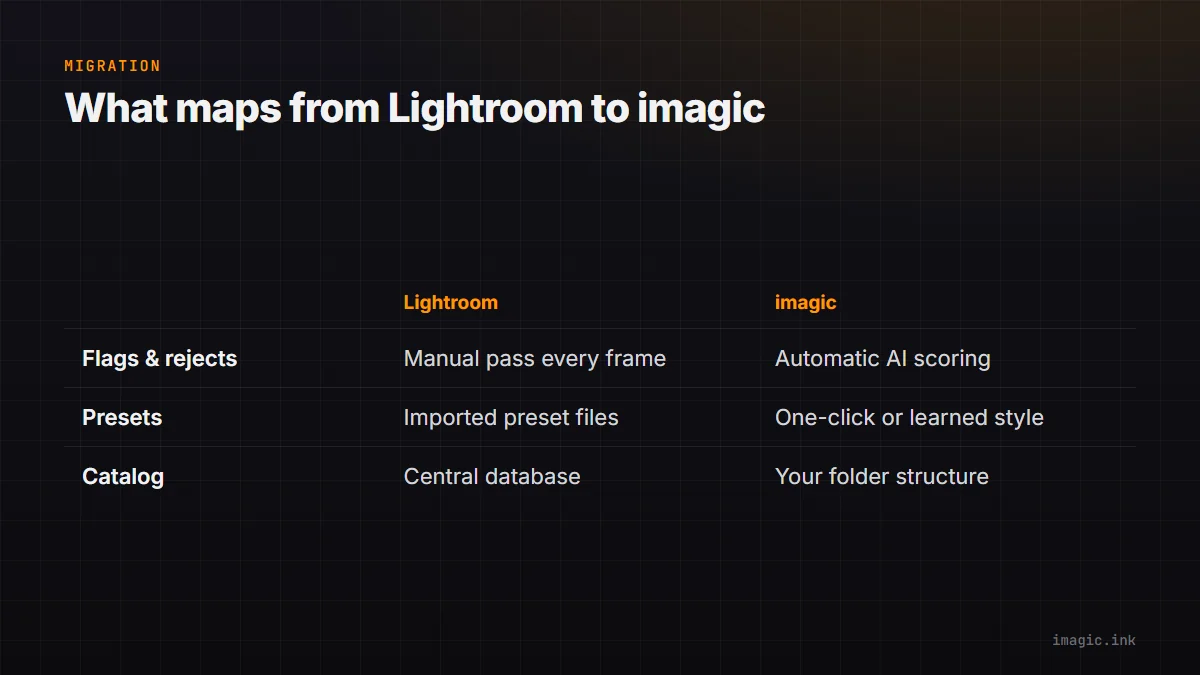
Lightroom's flag and reject workflow maps to imagic's AI quality scoring, except imagic's version runs automatically across sharpness, exposure, and closed eyes rather than requiring a manual pass on every frame. Lightroom presets map conceptually to imagic's one-click styles for a quick, fixed look, and to style calibration (imagic Max) for a learned personal style built from up to 8 guided edits on your own photos rather than an imported preset file. Lightroom's catalog, the database tracking every edit and organizational tag, maps to nothing directly; imagic works from your folder structure instead, which is the single biggest conceptual shift in the whole migration.
What Has No Equivalent
Be honest about this before switching: imagic has no cloud sync, no mobile companion app, no tethered shooting support, no printing module, no plugin ecosystem, and no layers, generative fill, HDR merge, or panorama stitching. Retouching is limited to the Heal / Remove brush (heal, clone and content-aware remove), red-eye correction and portrait polish, which are included in Plus and Max. If your current workflow depends on any of those specifically, imagic will not replace that piece, and you will need to keep a separate tool (or keep Lightroom) for that function. This is not a hidden gap, it is a scope decision worth knowing up front rather than discovering mid-project.
What You Give Up, Stated Plainly
Beyond the missing features above, you give up a decade of accumulated Lightroom presets (they do not import), Lightroom's specific masking tools, and any workflow built around Creative Cloud storage syncing your library across devices automatically. What you gain in exchange is AI culling and duplicate detection in every tier, batch editing and one-click styles included, RAW processing via its own built-in RAW engine, local-only processing so photos never leave the machine, and a one-time price instead of a recurring one.
First-Week Plan
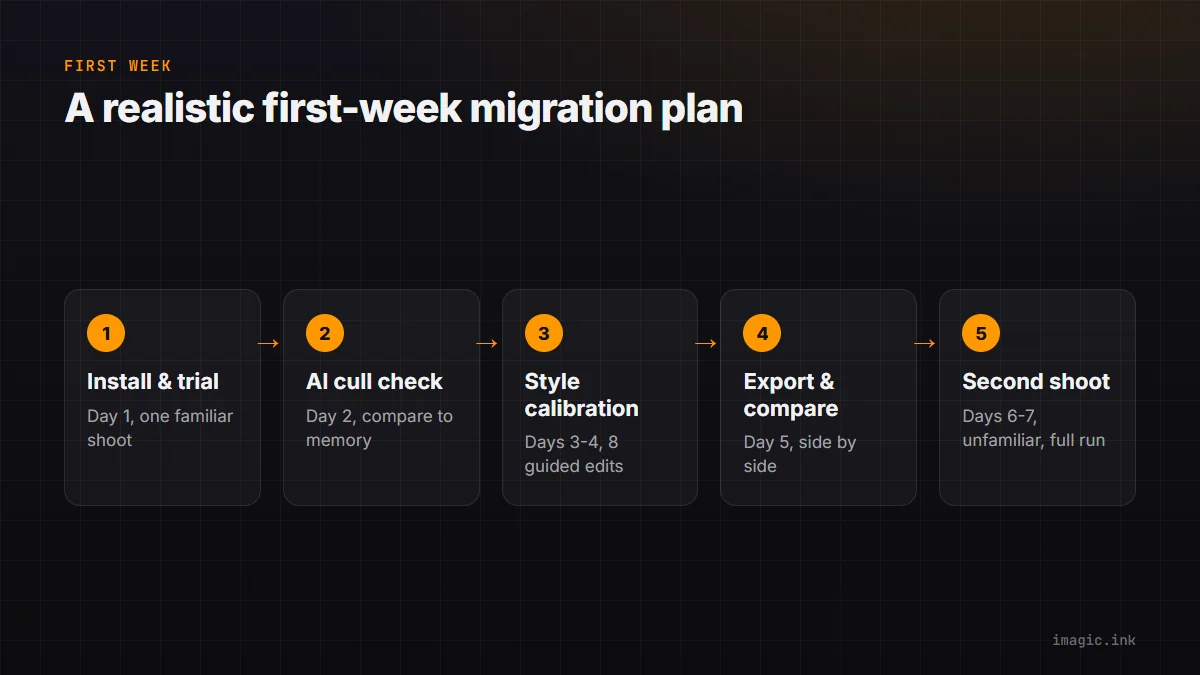
Day one: install imagic and run the free 500-export trial (no card required, full Max access) on one recent shoot you already know well, ideally one you have already edited in Lightroom, so you have a direct comparison. Day two: run AI culling on that shoot and check the shortlist against what you remember picking manually. Days three through four: if using Max, go through style calibration with 8 guided edits on that same shoot, since the learned style is only as good as the edits you feed it. Day five: export and compare results side by side against your Lightroom-edited version of the same shoot. Days six and seven: if the comparison holds up, try a second, unfamiliar shoot start to finish before deciding on a tier.
Backing Up Before You Switch
Before starting the migration, export your existing Lightroom edits (full-resolution JPEG or TIFF copies) and write metadata to XMP sidecars or DNG files so your edit history stays with the RAW files themselves. See Stop Paying for a Lightroom Subscription for the wider case on leaving Lightroom entirely rather than run both tools in parallel for a while.
Frequently asked questions
Can I import my Lightroom presets into imagic?
No, presets do not carry over. imagic's style calibration builds a learned style from your own guided edits instead of importing a preset file.
Do I need to switch all at once?
No, running both tools in parallel on different shoots during the trial period is a reasonable way to build confidence before fully switching.
What happens to my Lightroom catalog if I stop using it?
The catalog itself remains on your machine unless you delete it, but future edits made in imagic will not appear there since imagic works from folders, not a shared catalog.
Try imagic free for 500 exports, no card required, and run your first-week migration plan on a shoot you already know. Start the free trial.