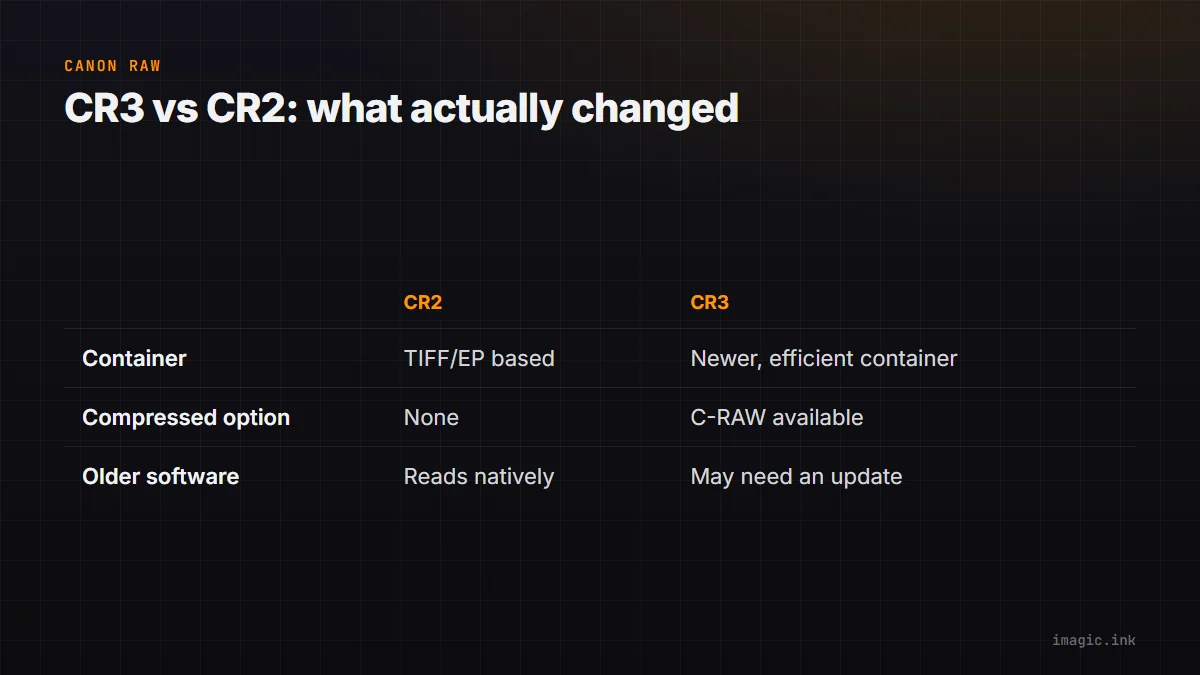
Canon switched its RAW format from CR2 to CR3 starting with its mirrorless EOS R line, and the change is bigger than a version-number bump. CR3 vs CR2 comes down to a genuinely different underlying file container, a new compressed option most CR2 shooters never had, and a real software compatibility gap that catches photographers off guard when they update their gear.
The Container Change
CR2 was based on the older TIFF/EP structure, a format Canon had used for years across its DSLR lineup. CR3 uses a newer, more efficient container format built for faster write speeds and smaller file sizes, better suited to high-frame-rate mirrorless bodies generating large bursts. This is not a cosmetic change, it is a structural difference that means older software built specifically around the CR2 container often cannot read CR3 files at all without an update.
The C-RAW Option
CR3 introduced C-RAW (Compact RAW), a compressed RAW option that meaningfully reduces file size compared to standard CR3, with a tradeoff in some fine detail and dynamic-range headroom depending on the scene. CR2 never offered a comparable in-camera compressed option at this level. For photographers shooting long bursts or with limited card space, C-RAW is a genuine practical upgrade; for those who want maximum quality headroom for heavy post-processing, standard (uncompressed) CR3 remains the safer choice.
Software Compatibility Cliffs
Because CR3 uses a different container, software that has not been updated to support it will simply fail to open the files, sometimes with a confusing generic error rather than a clear "unsupported format" message. This catches photographers off guard specifically when they upgrade from an older Canon DSLR to a newer EOS R body and assume their existing editing tool will just work. Always confirm current CR3 support directly with your specific editor before a shoot depends on it, rather than assuming compatibility because the tool supported CR2.
Managing a Mixed Archive
Photographers who shoot both an older DSLR body (CR2) and a newer EOS R body (CR3), a common situation during a gear transition period, end up with a mixed-format archive that any workflow tool needs to handle without friction. The practical requirement is straightforward: your culling and editing software needs to support both formats natively, in the same folder, without forcing a manual conversion step for one or the other. imagic supports CR2 and CR3 alongside NEF, ARW, RAF, ORF, RW2, DNG, and PEF, so a mixed Canon archive spanning both generations can be culled and batch-edited together without splitting the workflow by format. See imagic and CR3 files and imagic and CR2 files for format-specific details.
Should You Convert Old CR2 Files to CR3?
No, there is no meaningful benefit to converting existing CR2 files to CR3; the format was tied to camera hardware at capture time, and converting after the fact does not add any of CR3's actual advantages (faster in-camera writes, C-RAW compression) retroactively. Keep CR2 files as CR2 and let CR3 apply naturally to anything shot on a CR3-capable body going forward. See Canon RAW Files: Free Editors for CR2 and CR3 for a broader look at editor options for both formats.
Frequently asked questions
Can I open CR3 files in software that only supports CR2?
Not without an update, since CR3 uses a different underlying container; check your specific software's current format support before assuming compatibility.
Is C-RAW as good as standard CR3 for editing?
It is close for most everyday editing, with some reduction in fine detail and dynamic-range headroom in demanding scenes; standard CR3 remains the safer choice for heavy post-processing.
Do I need to convert my old CR2 files to CR3?
No, there is no benefit to converting after the fact; CR3's advantages come from in-camera capture, not the file format alone.
Try imagic free for 500 exports, no card required, and cull and edit a mixed CR2 and CR3 archive in one workflow. Start the free trial.