
MCP, short for Model Context Protocol, is not an editing feature and it is not a camera setting. It is a plumbing standard: a shared way for an AI application to talk to outside tools and data, the way USB-C gives unrelated devices one shared plug instead of a drawer of proprietary cables. (Checked 15 August 2026.) The open specification, maintained at modelcontextprotocol.io, describes MCP as a standard for connecting AI applications to external systems: data sources such as local files or databases, tools such as calculators or search engines, and predefined workflows.
What MCP Actually Is
For a photographer, the practical version of that definition is narrower. MCP is the wire format that lets a chat assistant or a coding agent ask a piece of software on your computer, such as imagic, to do something specific and get a structured answer back. The protocol itself carries no opinion about photography. It does not know what a RAW file is, it does not score sharpness, and it cannot open an editor window on its own. All of that work happens inside whatever server implements the protocol; MCP only standardizes how the request and the answer are shaped, so any MCP-aware client can talk to any MCP-aware server without custom integration code written for each pairing.
That last point is most of the reason the protocol exists. Before a shared standard, connecting an AI assistant to a dozen different tools meant writing a dozen different bespoke integrations, one per tool, each with its own request format. MCP replaces that with one format both sides agree on. According to the specification update covered on the protocol's own blog, the current version of MCP (labelled 2026-07-28) moved to a stateless request-response model built on JSON-RPC 2.0, tightened how authorization tokens are issued, and set a formal deprecation policy for older features, changes aimed at the developers building clients and servers rather than at the person typing a message into a chat window. A photographer using a finished MCP client does not need to track any of that directly; it only matters if a specific plugin or client is slow to update, in which case the plugin author's own release notes, not this page, are the place to look.
The official documentation lists concrete examples of what the standard enables elsewhere: an agent reading a calendar, a coding assistant pulling in a design file, a chatbot querying a company database. None of those examples are about photography, and that is normal. MCP is domain-agnostic by design. Whether it turns out to be useful to a working photographer depends entirely on whether a piece of photography software chooses to expose an MCP server, and what that server actually lets an AI agent do once connected.
The Four Working Parts: Host, Client, Server, and Tool
The architecture documentation on modelcontextprotocol.io breaks MCP into a small number of named roles, and separating them clears up most of the confusion photographers run into.
| Term | What it is | Photography example |
|---|---|---|
| Host | The AI application you actually open and type into. | Claude Desktop, Claude Code, Cursor, or another chat or coding assistant. |
| Client | A connector inside the host, one per server, holding the live connection. | The piece of the host that specifically talks to imagic's server, separate from any piece talking to a calendar or database server. |
| Server | A small program that exposes a defined set of capabilities over the protocol. | imagic-mcp, running on your own machine. |
| Tool | One callable action a server exposes, with a name and defined parameters. | scan_directory, analyze_photos, apply_my_style, export_photos. |
Put in a sentence: the host is the assistant you are chatting with, the client is the connector the host creates for each server it talks to, the server is the program doing the actual work, and a tool is one specific action that server offers. The architecture reference gives a clean illustration of the client side of this: when an editor such as Visual Studio Code connects to a database server and a separate filesystem server, it creates two separate client connections, one per server, even though both live inside the same host application.
Servers can run in two different places, and the distinction matters more to a photographer than almost anything else in the specification. A local server uses a transport called stdio, standard input and output, and talks directly to a process running on the same machine with no network hop involved. A remote server uses HTTP and can serve many clients over the internet at once. imagic's MCP server is local: it runs as a process on the same Windows or macOS machine as the desktop app, launched by the host application, and reachable only from that machine. That single fact underpins most of what the section on privacy and consent further down this page has to say.
A tool, the fourth piece, is the actual unit of work. Each tool a server exposes has a name, a plain-language description, and a defined set of parameters, and a client can ask the server to list them before calling any of them. That listing step matters: an AI agent connected to imagic does not have to guess what it can do. It requests the tool list, gets back names such as scan_directory and export_photos along with their required arguments, and only then decides which one to call and with what values.
What MCP Is Not
Three misconceptions come up often enough to address directly.
MCP is not an editor. The protocol carries requests and structured answers. It has no concept of exposure, color grading, or a crop rectangle. When an AI agent "edits a photo" through MCP, what actually happens is that the agent calls a tool such as apply_preset or apply_adjustments, the server runs imagic's own processing pipeline exactly as it would if you clicked the equivalent control in the desktop app, and the server reports back whether the call succeeded. MCP is the request envelope, not the editing engine inside it. Nothing about the protocol edits a photograph by itself, and no server is required to expose an editing tool at all; a server could just as easily expose only read-only reporting tools.
A local server does not automatically upload anything. Because imagic's server uses the stdio transport described above, tool calls travel between two processes on the same machine rather than across the internet. That is a different question from what the AI model behind the host application sees, which the next major section covers in detail, but it directly contradicts a common assumption: installing an MCP server does not, by itself, mean RAW files start streaming to a cloud provider. A tool call only sends whatever the tool's response is defined to contain, and for imagic that is typically counts, ids, statuses, and short text fields, not raw pixel data.
MCP is not specific to any one AI company. The specification is published as an open standard, and the intro documentation lists support across a wide range of clients and servers, including assistants from more than one vendor plus development tools such as Visual Studio Code and Cursor. It is a shared wire format, similar to how HTTP is not owned by any single browser maker.
How imagic Uses MCP
imagic is a desktop photo culling and editing application for Windows and macOS that processes photos locally: nothing in the ordinary desktop workflow uploads a photo anywhere. The MCP server, called imagic-mcp, is an addition on top of that, available only on the Max license. On Lite and Plus, the same commands exist but exit with an explanation rather than running, because the tool surface described on this page is Max-only.
Once connected, the server groups its tools by purpose. A library group covers ingest and inspection: scanning a folder into the library, listing photos, checking counts by status. A culling group scores sharpness, exposure, and composition, groups near-duplicates and burst sequences, and lets an agent set or reset an individual photo's status. An editing group applies named presets or specific slider adjustments and renders exports. A style group is the least conventional one: rather than a fixed preset, it can learn a profile from edits already made in a library, or from a small set of reference photos, and then apply that learned look to the rest of a shoot. The dedicated guide on training a personal AI editing style locally covers how that learned profile is built in more depth than fits here.
The exact list of tool names, parameters, and return values is published and kept current at imagic.ink/mcp/tools, generated directly from the server's source rather than written by hand, which matters because a hand-maintained description tends to drift out of date as a product changes. The general imagic MCP overview covers the same ground for a reader who wants the product page rather than the full tool reference.
Two behavioral guarantees carry over from the desktop app and apply identically through MCP. Culling never deletes a file; rejecting a photo sets its status and nothing more, and any status can be reversed. Editing is non-destructive; adjustments are stored as instructions and applied at export time, so the original RAW file is never rewritten. An AI agent calling these tools inherits the same guarantees a person clicking the equivalent buttons would get, because it is calling the identical underlying code path, not a separate automation layer with looser rules.
What MCP adds, in practice, is a way to drive that pipeline with a written instruction instead of a sequence of clicks: "cull the shoot in this folder and export the keepers" becomes a short chain of tool calls rather than a folder-by-folder manual pass. What it does not add is a new editing capability. Every tool available over MCP mirrors something the desktop app can already do; there is no MCP-only feature that reaches further than the graphical interface.
A Wedding Shoot, Start to Export: MCP in Practice
Wedding photography is a useful case to walk through, because the volume and the deadline pressure are exactly where a scripted pass earns its keep. A single wedding day commonly produces several thousand frames across two cameras, a ceremony, a reception, and a handful of formal group shots, and a shooter juggling delivery deadlines for several weddings at once benefits more from cutting hours out of culling than from any single editing trick. The wedding camera and file-management guide on this site works through the camera-body side of that problem, from dual-card backup habits to a realistic shot list; MCP is the layer that can pick up once the cards are copied off and it is time to turn a folder of RAW files into a delivered gallery.
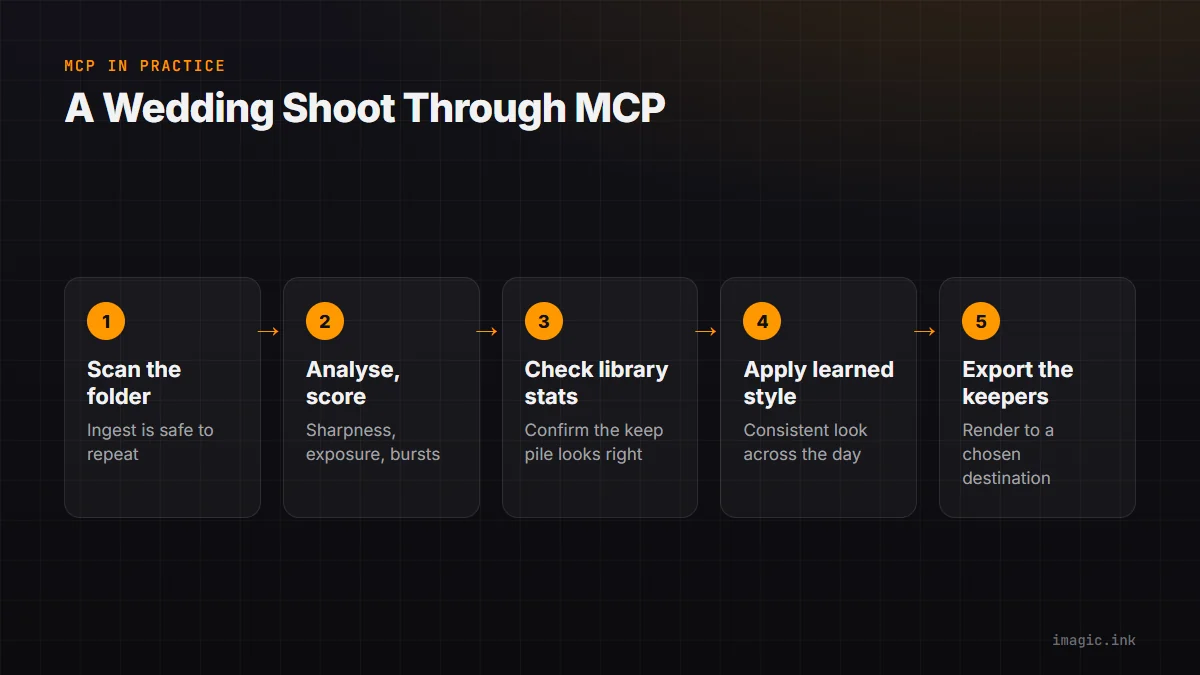
A typical chain of tool calls for that stage looks like this. First, scan_directory ingests the folder, so the library knows what exists; this step is safe to repeat because already-known files are skipped. Second, analyze_photos scores every pending frame for sharpness, exposure, and composition, and groups near-duplicate and burst frames, sorting the shoot into keep, trash, and an undecided middle group in one pass. Third, get_library_stats reports the resulting counts, a natural point to check whether the keep pile looks like a plausible wedding gallery before doing anything further with it. Fourth, apply_my_style applies a color and tone profile learned from edits made previously in the same library, so a consistent look carries across the ceremony, the portraits, and the reception without falling back on a generic preset that ignores established taste. Fifth, export_photos renders the keepers to JPEG or TIFF in a chosen destination folder.
None of those five steps requires opening the desktop application and clicking through each photo individually first, though nothing stops a photographer from reviewing the keep and trash piles afterward, adjusting a handful of individual statuses with set_photo_status, and re-running export_photos on the corrected set. That review step matters: an agent calling analyze_photos is running the same scoring model a person would trigger from the interface, and it can misjudge a frame the way any automated scorer can, so treating the AI-driven pass as a fast first cut rather than a final, unreviewed delivery is the safer way to use it on paid client work.
The threshold and target-count controls exposed through reselect_photos are worth knowing about for exactly this reason. Rather than re-running the full analysis to get a slightly different selection, an agent can call reselect_photos with a new target count and get an instantly re-ranked list from the scores already stored, which is the practical version of "give me the best eighty instead of sixty" without waiting through a second full pass.
Local Execution, Consent, and What Actually Leaves the Machine
Two separate questions get collapsed into one in most conversations about AI and photo privacy, and separating them clears up most of the anxiety. The first question is where the MCP server runs. The second is where the AI model behind the host application runs. They are not the same thing, and conflating them is how "local processing" claims end up sounding like marketing rather than a specific, checkable fact.
imagic's server runs locally, using the stdio transport described earlier on this page: a process on your own machine, started by the host application, talking over standard input and output rather than a network socket. A tool call such as scan_directory or export_photos never leaves that machine to do its work; the folder scan, the scoring, and the file export all happen where the photos already are. That is the basis for imagic's broader claim that photos never leave the machine during ordinary use of the desktop app, and it holds through the MCP server as well, because the server calls the same local processing code.
The second question is separate and depends on which host application is connected. If the host runs a model locally, nothing leaves the machine at any point. If the host is a cloud-hosted assistant, which describes most current consumer chat clients, the model itself runs on a remote server and sees whatever text a tool call returns as part of the conversation, the same way it sees anything else typed into the chat. For imagic's tools, that returned text is typically small and structured: a photo count, a status, a filename, a short caption field, not the pixel data of a RAW file. No imagic tool response is built to carry an embedded image file, so a cloud-hosted host application answering a question about how the culling went is working from summary text, not from the photographs themselves. Readers who want the fuller version of this distinction, across imagic and several other culling tools, can see the dedicated cloud-upload privacy checklist, which walks through exactly this local-versus-cloud line for more than one product at once.
Consent is the third piece, and it sits with the host application rather than inside the protocol itself. The specification defines a request-and-response exchange between client and server; it does not mandate a specific approval screen. In practice, mainstream MCP hosts, including Claude Desktop and Claude Code, show a confirmation before running a tool the first time, or every time, depending on the settings chosen, so a chat assistant does not silently start scanning a drive or exporting files without a visible prompt. That behavior comes from how each host application implements the human side of the exchange, not from a rule enforced by the wire protocol itself, so it is worth checking an unfamiliar client's own documentation for exactly how it surfaces that approval before pointing it at a working photo library.
Setting Up an MCP Client for Photography
The general shape of setup is the same across MCP servers, because the protocol standardizes the connection: a host application needs a small configuration entry telling it how to launch the server, usually a command and a path. For imagic specifically, that means a Max license or an active 500-export trial, since the tool surface only runs on Max, plus a host application capable of launching a local stdio server, which covers the current generation of coding assistants and several chat clients.
Rather than reproduce configuration snippets that go stale the moment a client updates its own settings format, the practical starting point is imagic's own setup reference at imagic.ink/mcp/setup, which as of the 15 August 2026 check covers fourteen verified clients individually, including Claude Code, Claude Desktop, Cursor, Visual Studio Code with GitHub Copilot, Windsurf, Zed, and several others, with the exact configuration block each one expects. It also flags which mainstream assistants cannot currently host a local stdio server at all, which matters more than it sounds: a client limited to remote HTTP servers is not a fit for a local-only tool like imagic-mcp, no matter how carefully the setup steps are followed.
Two practical points cover most of the repeated troubleshooting. First, a wrong or truncated path in the server command tends to fail quietly rather than with an obvious error, so it is worth checking the exact command string against the reference page rather than retyping it from memory. Second, running imagic tools from a terminal lists every currently available tool with its parameters directly from the installed build, which is the fastest way to confirm the server is reachable at all before troubleshooting a specific client's configuration file. The same tool list is available without any client at all, through the command-line interface described in imagic's own agent documentation, which is a useful way to test a scripted pipeline before wiring it into a chat assistant.
Anyone starting from zero, without a Max license yet, can begin from the imagic desktop download, which includes a 500-export trial covering Max features and does not require a card to start.
When MCP Helps, and When the Desktop App Is Enough
MCP is a genuine time saver for a specific kind of photographer: someone who already keeps a coding assistant or chat client open for other work, is comfortable typing an instruction instead of clicking through a folder, and regularly processes a volume of photos large enough that a scripted pass beats a manual one. A wedding or event shooter delivering several thousand-frame shoots a month, or anyone running the same cull-and-export sequence across many client folders, fits that description well.
It is not a fit for everyone, and pretending otherwise would misrepresent the product. It is not for you if you shoot small batches and are already fast with the desktop app's own review screen, since setting up and trusting an agent-driven pass takes longer than it would save on, say, forty photos from a walk. It is not for you if you are not willing to install and configure a chat or coding client, since MCP has no interface of its own; without a host application there is nothing to type an instruction into. It is not for you if the editing needed falls outside what imagic does at all: there is no generative fill, no layers, and no HDR or panorama merge, and the Heal / Remove brush in Plus and Max is a desktop editor tool with no heal or clone tool in the MCP tool set, so a shoot that depends on those techniques needs a different tool regardless of how it is automated. And it is not for you if a Max license is out of reach and the trial has already run out, since the tool surface described on this page is a Max-only addition on top of the base application.
None of that is a knock on the protocol itself. MCP did not make imagic more capable; it made an existing set of capabilities reachable through a written instruction instead of a mouse. Photographers who prefer clicking through a review grid lose nothing by ignoring the MCP server entirely and using the desktop app the ordinary way. Both paths call the same processing code and produce the same non-destructive results either way.
Frequently Asked Questions
Do I need to know how to code to use MCP with imagic?
No. The coding happens once, on the client and server side, by the people who built the host application and imagic-mcp. Using it day to day means typing a plain instruction into a chat or coding assistant, such as asking it to cull a specific folder and export the keepers, and reading the response. Some comfort installing and configuring desktop software helps, since setup involves editing a small configuration entry the first time, but that step is closer to installing a browser extension than writing a program.
Does an MCP server upload photos to the cloud?
Not by itself. imagic's server uses a local stdio connection between two processes on the same machine, and its tools return structured data such as counts, ids, and statuses rather than raw image files. Whether anything crosses the internet depends on the host application: a locally-run model sees nothing beyond the machine, while a cloud-hosted assistant sees whatever text a tool call returns as part of the chat, the same as any other message typed into it. The privacy checklist for culling tools covers this distinction across several products, not only imagic.
Which MCP clients work with imagic?
imagic's setup reference lists fourteen verified clients as of the 15 August 2026 check, covering most current coding assistants and several chat clients that can launch a local stdio server. It also notes which mainstream assistants cannot host a local server at all, which rules them out regardless of configuration. The current list, with exact setup steps per client, is maintained at imagic.ink/mcp/setup rather than reproduced here, since client software updates its own settings format independently of this page.
Is MCP the same thing as an AI editing feature built into an app like Photoshop?
No. A built-in AI feature, such as an automatic subject-select or a generative fill tool, is a specific capability shipped inside one application by one vendor. MCP is a connection standard: it lets a separate AI application reach into another program's existing tools from the outside. imagic itself has no generative fill or layer-based retouching, on the desktop app or through MCP, so MCP does not add capabilities imagic lacks; it changes how the capabilities imagic already has get triggered, from a click to a written instruction.
Can an AI agent delete photos through MCP by mistake?
No command exposed by imagic's server deletes an original file, whether it is called by a person through the desktop app or by an agent through MCP. Rejecting a photo during culling sets a status, and trash never removes anything from disk; it only excludes a photo from export, and the status can be reversed at any point with set_photo_status. That guarantee is a property of imagic's underlying processing code, not of an AI agent's judgment, so it holds even when a cull decision made by the scoring model, or relayed by an agent, turns out to be wrong.